pCloud is a secure, Swiss-based cloud storage service for storing, sharing, and syncing files across devices, offering features like automatic backups, file versioning, collaboration tools, and optional client-side encryption for enhanced privacy.
Backup4all cannot access directly pCloud, so you need to install their pCloud application (free). This application will map your pCloud account as a local drive P:, which can be used in Backup4all.
Follow these steps to install pCloud on your computer.
- Download the setup file for pCloud from the following link.
- Run the setup file to install pCloud.
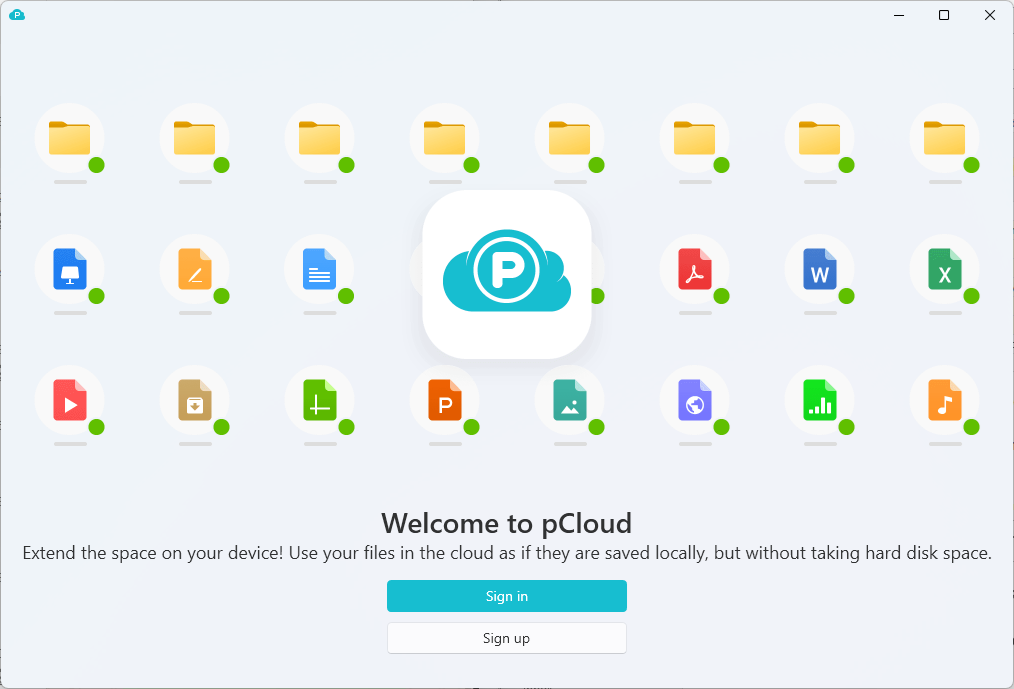
- Press Sign in button
![]()
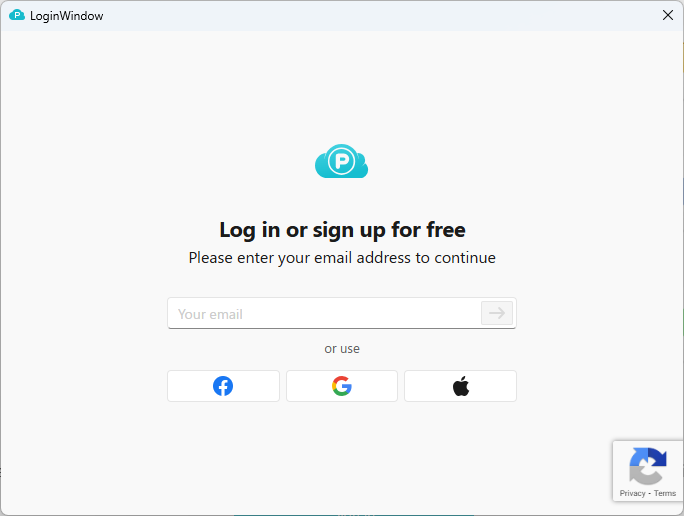
- Enter your email and password for pCloud.
![]()
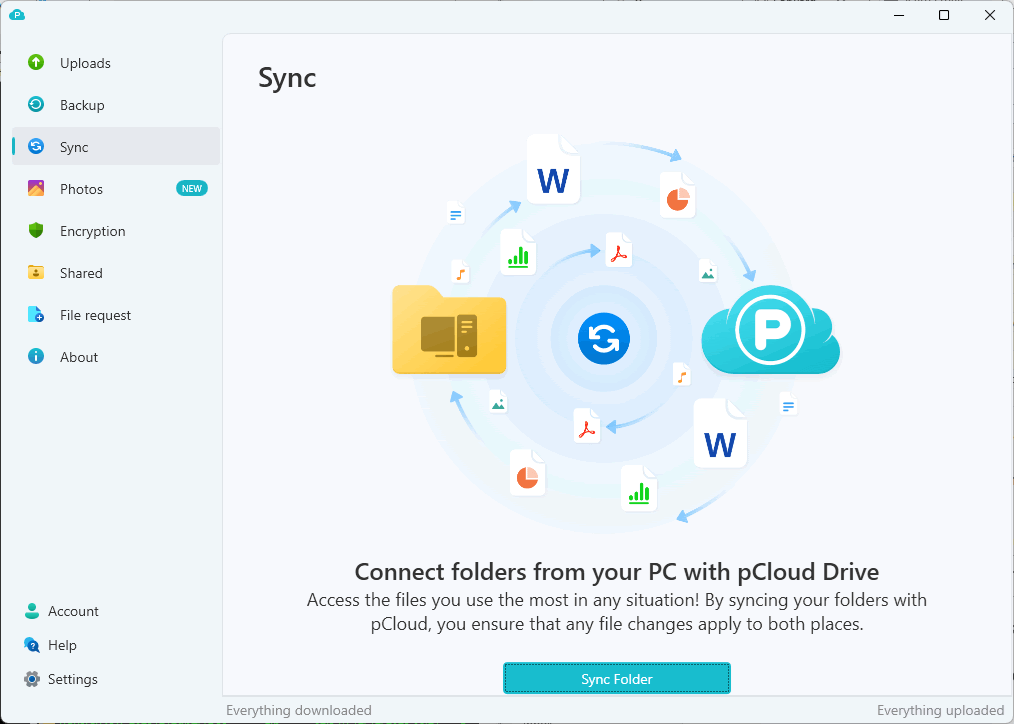
- After login, pCloud application will open.
![]()
Follow these steps to back up files and folders to pCloud:
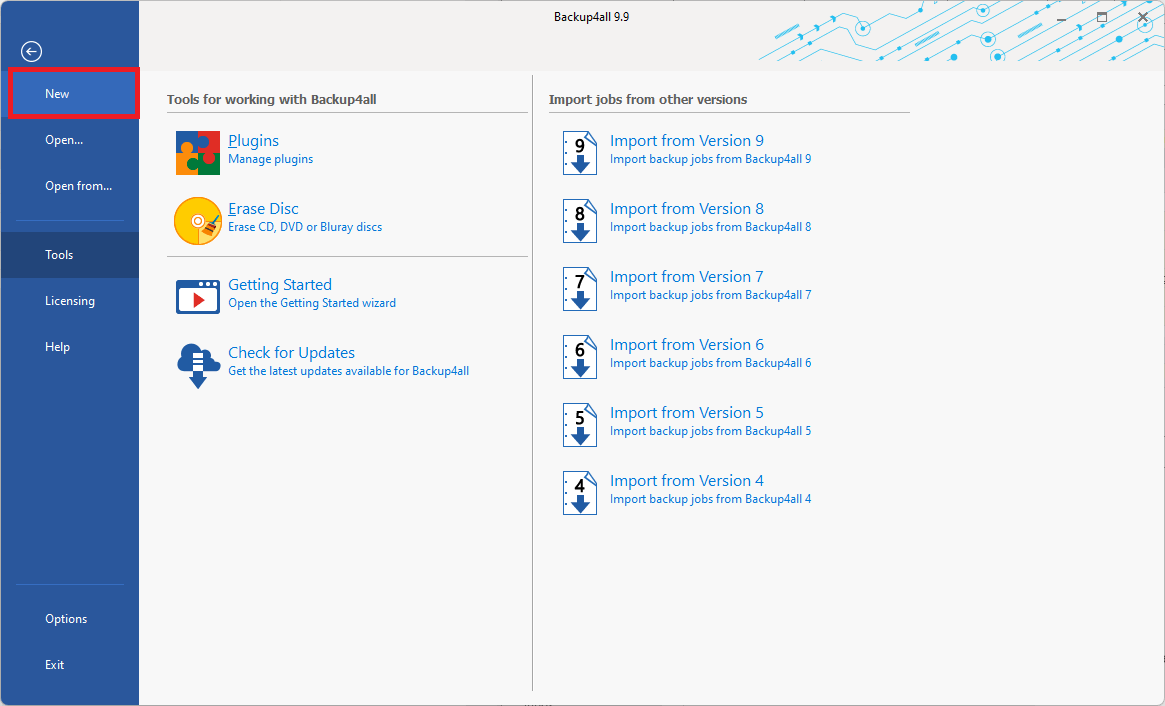
- Open Backup4all and select File -> New (Ctrl+N).
![]()
- On the Where do you want to save the backup? page, select the pCloud drive as backup destination. The mapped pCloud drive letter can be found under Removable USB drives list. Press Next
![]()
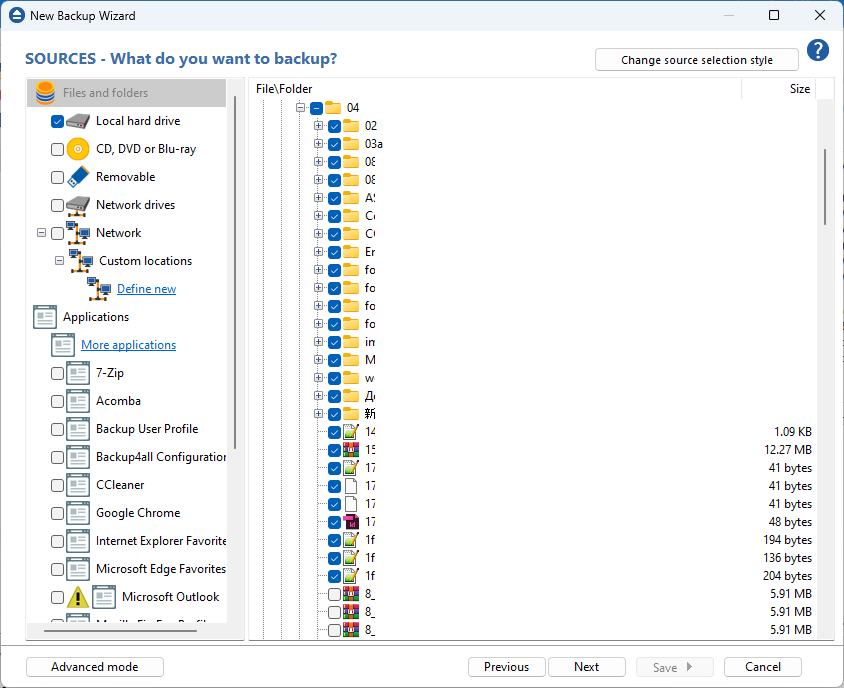
- On the What do you want to backup page, add the backup sources. Press Next
![]()
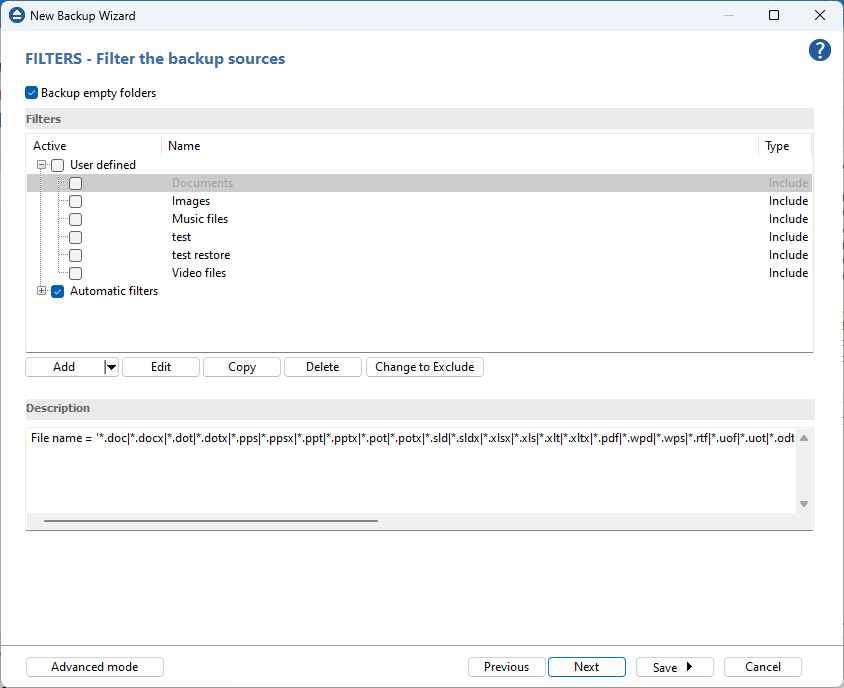
- On the Filter the backup sources page, you can set include/exclude filters for backup sources. Then press Next.
![]()
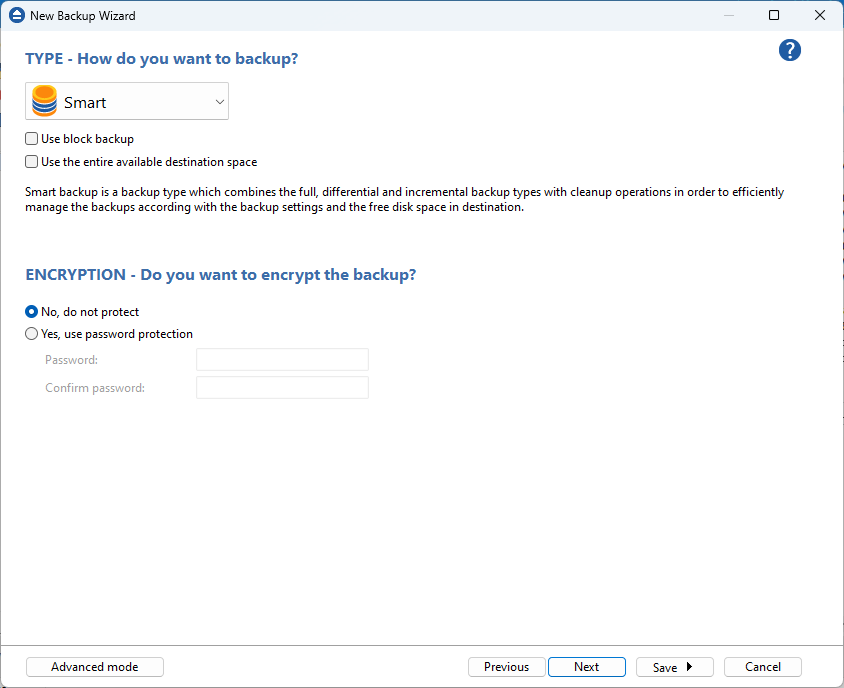
- On the How do you want to backup page, you can choose the backup type and the encryption.
![]()
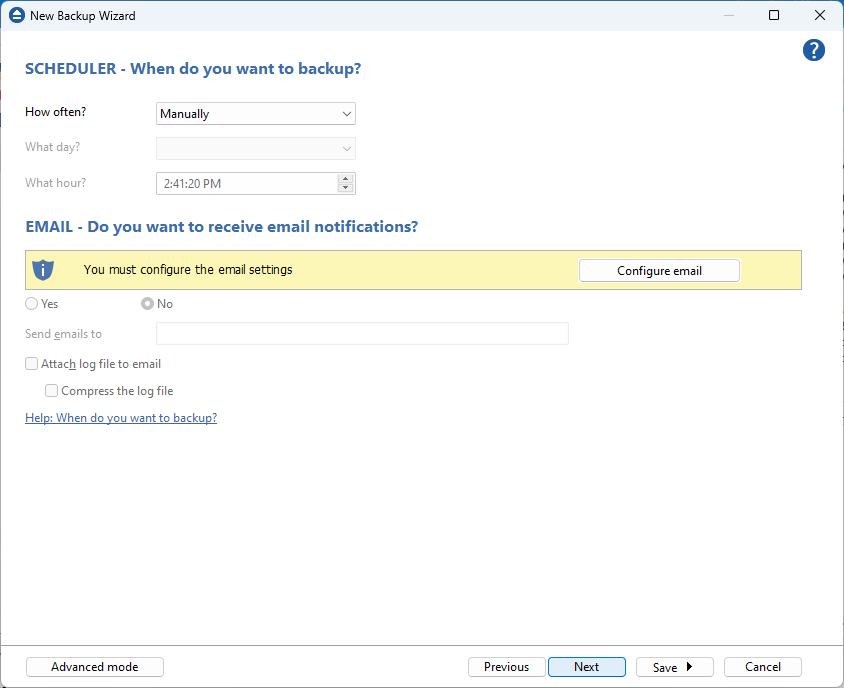
- On the When do you want to backup page, you can set the backup job to automatically run on the specified time and days. Press Next.
![]()
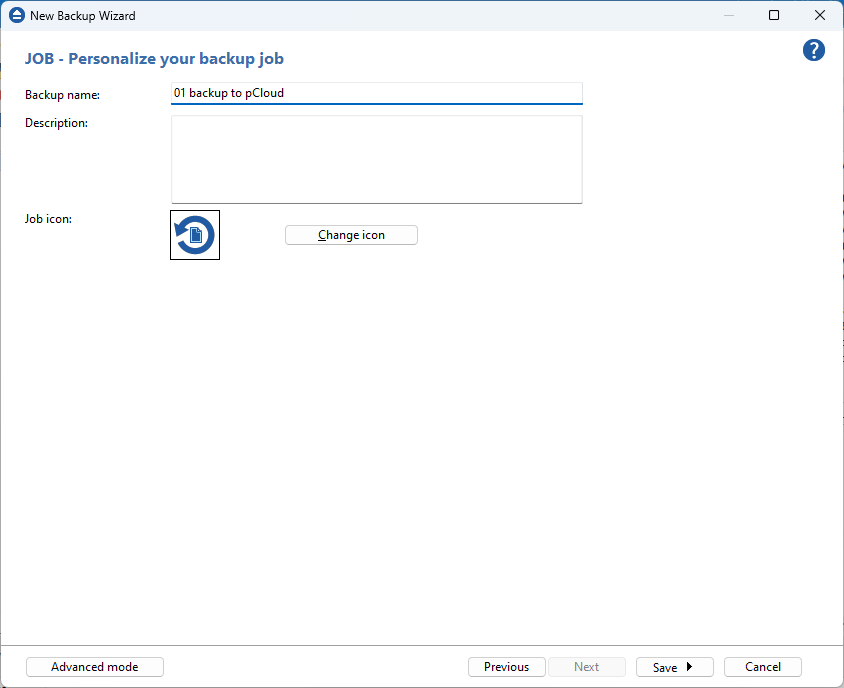
- On the Personalize your backup job page, enter a name for the backup in the Backup name field. Then press Save -> Save and run
![]()