Backup4all cannot access directly the files on MEGA, so you need to install AirLiveDrive application (free version). This application will map your MEGA account as a local drive, which will be used in Backup4all.
Follow these steps to map MEGA as a local drive.
- Download the setup file for AirLiveDrive from the following link.https://www.airlivedrive.com/downloads/AirLiveDrive-Installer.exe
- Run the setup file to install AirLiveDrive.
- Open AirLiveDrive and press "Add Cloud Disk" button.
![]()
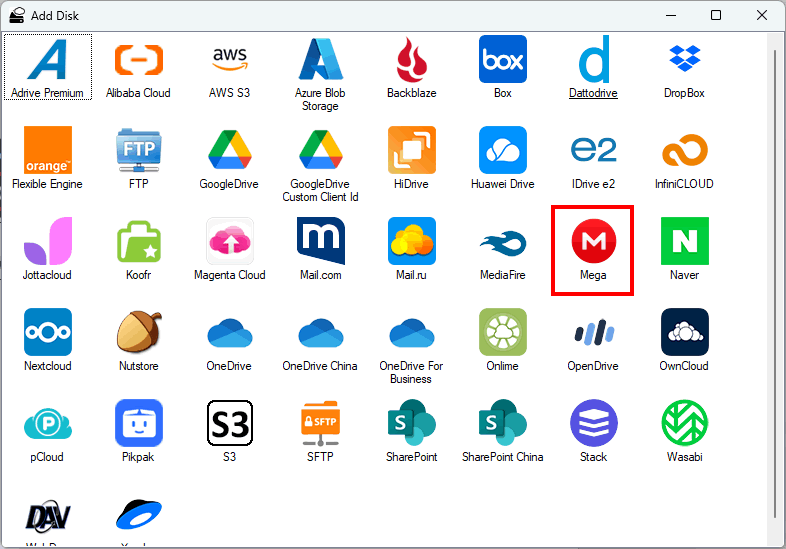
- Select "Mega" from the list of available clouds.
![]()
- Enter your login details for MEGA and press OK.
![]()
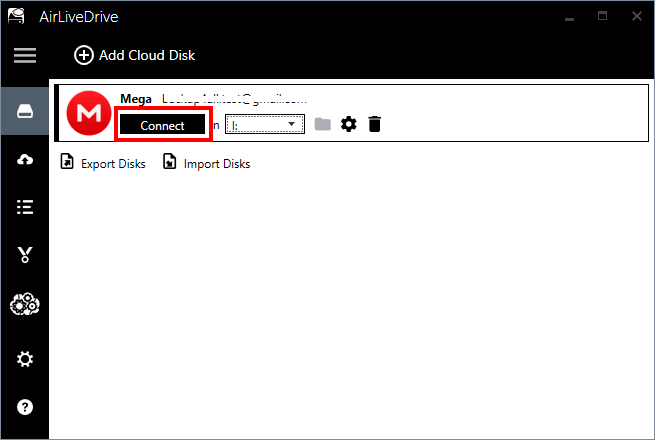
- The cloud will be added, press Connect to map it as a local drive.
![]()


Follow these steps to back up files and folders from MEGA:
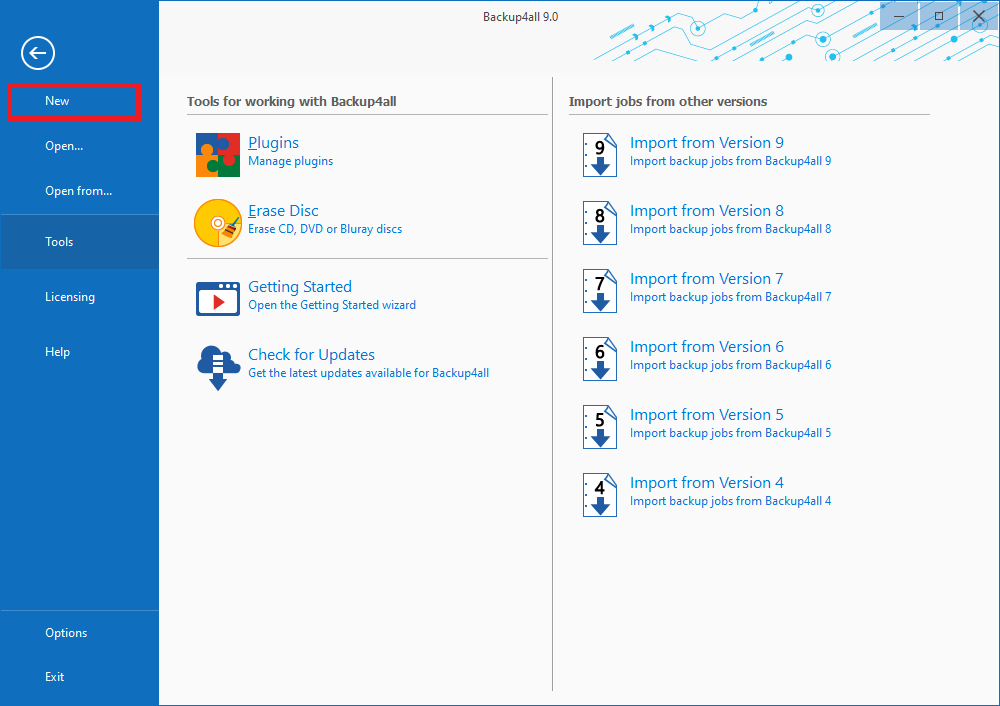
- Open Backup4all and select File -> New (Ctrl+N).
![]()
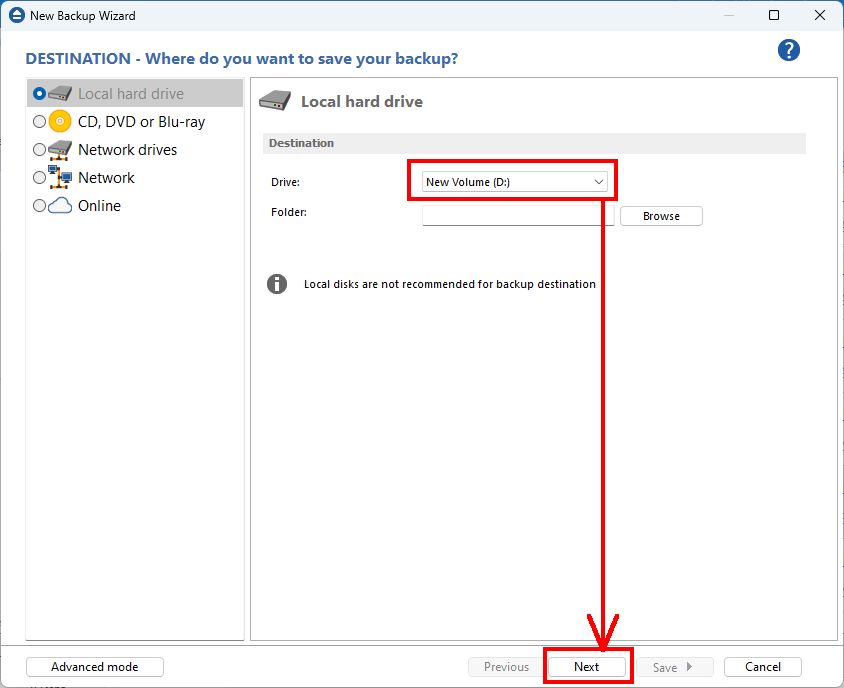
- On the Where do you want to save the backup? page, select the backup destination you want to use. In this article we will use a Removable USB drive. Press Next
![]()
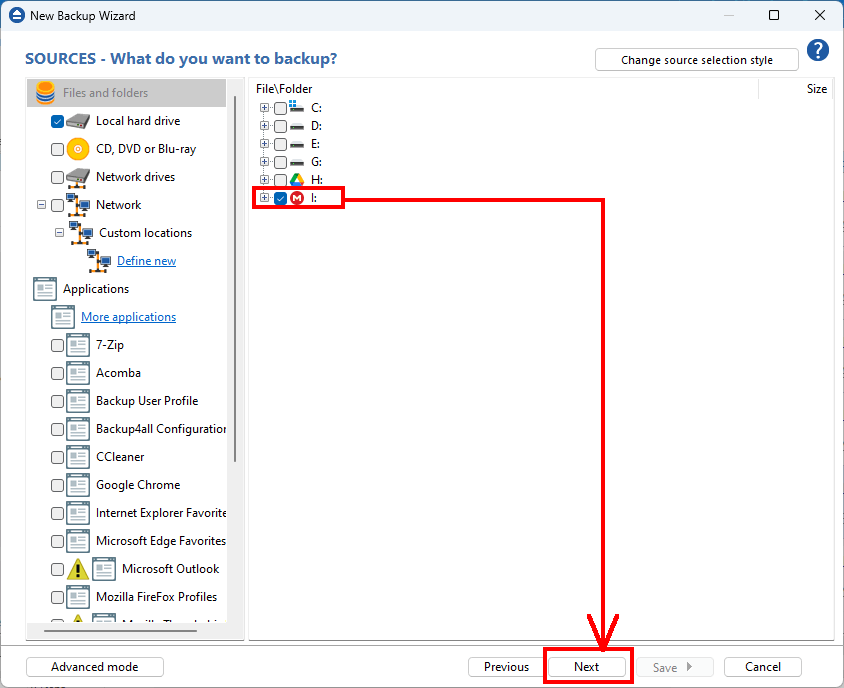
- On the What do you want to backup page, add the backup sources from MEGA, by using the local mapped drive. Press Next
![]()
- On the Filter the backup sources page, you can set include/exclude filters for backup sources. Then press Next.
![]()
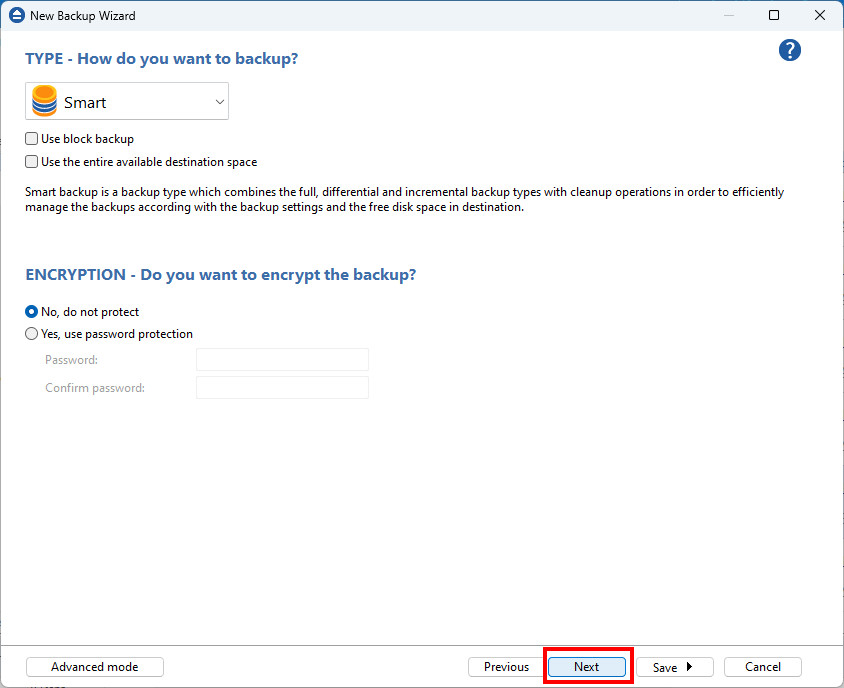
- On the How do you want to backup page, you can choose the backup type and the encryption.
![]()
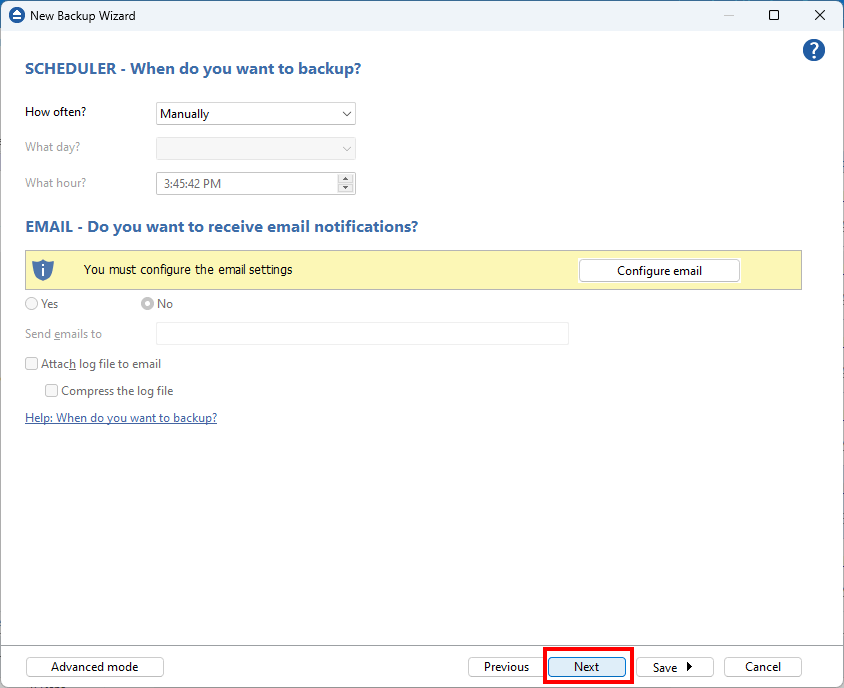
- On the When do you want to backup page, you can set the backup job to automatically run on the specified time and days. Press Next.
![]()
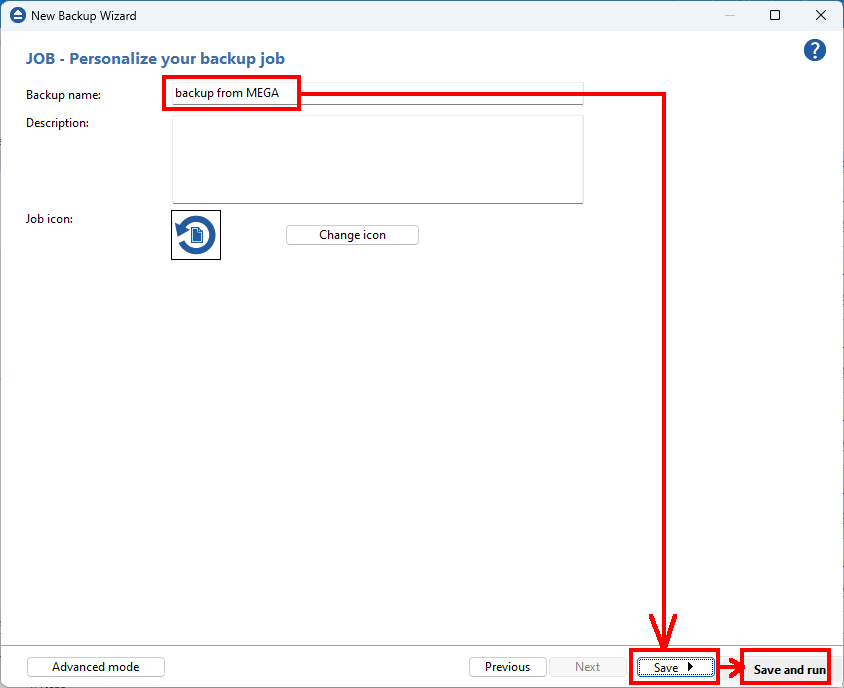
- On the Personalize your backup job page, enter a name for the backup in the Backup name field. Then press Save -> Save and run
![]()