This article explains how to schedule backup jobs in Backup4all. A scheduler can be set for a backup to be executed automatically at certain time intervals (daily, weekly, monthly) or at system startup, logon, when idle or shutdown.
On this page:
- How to schedule an existing backup job, backup tag or “One Touch Backup”
- Video Tutorial backup Scheduler
- How to schedule a backup job, backup tag or “One Touch Backup” to run at system shutdown
- Video Tutorial for how to backup at system shutdown
- How to schedule a backup job, backup tag or “One Touch Backup” without using Backup4ll
A backup job, backup tag or “One Touch Backup” can be scheduled from the Schedulers window of Backup4all (or for a backup job by right-clicking, selecting Properties -> Scheduler). The Schedulers window lists all the available information about the scheduled backup jobs and allows you to Add, Edit, Delete and Schedule new backups.
How to schedule an existing backup job, backup tag or “One Touch Backup”
To schedule an existing backup job, backup tag or “One Touch Backup” to run when no user is logged on, your Windows login password is required.
Steps to follow when scheduling an existing backup job, backup tag or “one touch backup”:
- Open Backup4all, press the Scheduler (F11) button.
- In the Schedulers window, click on the Add button. The Schedule Properties window will open.
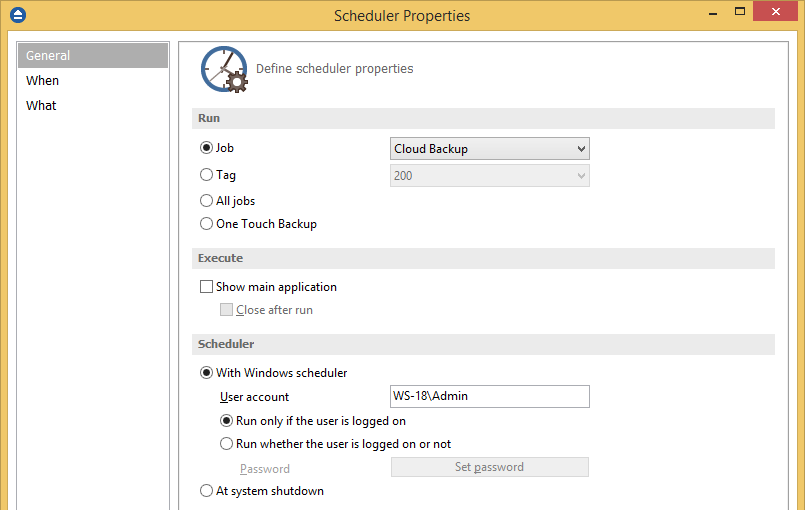
- In the Run section you can select between a backup job, a backup tag, all jobs and one touch backup.
- In the Execute section you can choose to show (or not) the main interface when running the backup.
- In the Scheduler section, you can select one of these options:
- Run only if the user is logged on the current user has to be logged on for the scheduler to be executed.
- Run whether the user is logged on or not to be able to run the backup even if no user is logged in. If you select this option you have to click on the Set password button and type your Windows login password in the new opened window.
- At system shutdown: the backup will run when the shutdown command is detected.

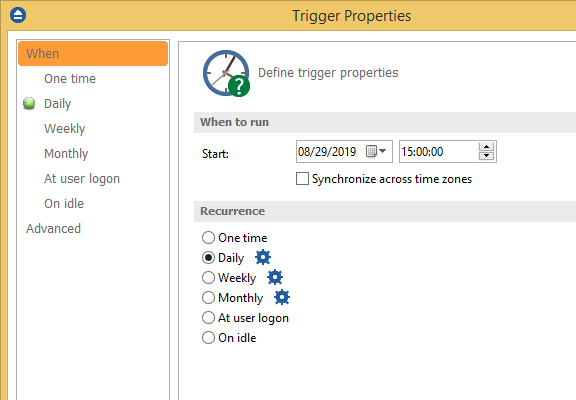
- Press Next. On the When page, press Add, set the backup frequency and the start time.

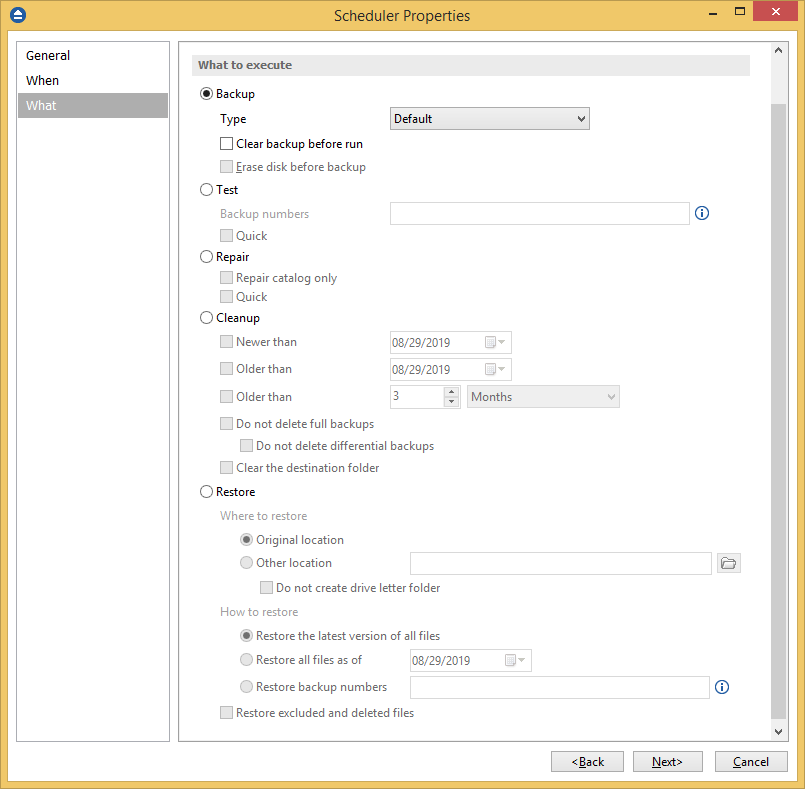
- Press OK and press Next. On the What page, select the action to be executed. You can select one of the following actions:
- Backup when the scheduler starts, this selected backup type will be performed. You can set the Clear backup before run option. Backup4all will first delete the ".bkc" file and all zip files associated with the current backup job and after that execute the scheduled task.
- Test to do a test operation when the scheduler is started. You can type here the backup numbers you want to test. The order you type them in is the order they will be tested.
- Repair to perform a test of the backups, followed by a backup execution, to include all files missing from backup.
- Cleanup when the scheduler starts, the backups matching the cleanup conditions will be erased.

- Press Save.
Video Tutorial backup Scheduler:
How to schedule a backup job, backup tag or “One Touch Backup” to run at system shutdown
A backup job, backup tag or “One Touch Backup” can be scheduled to be executed when the shutdown command is initiated. Backup4all intercepts the shutdown command and there is no way to know if a restart or a shutdown was requested. This is why it will always shutdown your computer after the backup is executed.
Steps to follow when scheduling a backup job to run at system shutdown:
- Open Backup4all, go to the Backup Properties (Ctrl+P)
- On the Scheduler page, click on the Add button. The Scheduler Properties page will open.
- Under Scheduler section, select At system shutdown option and press Next
- On When page, press Add to set the start time and the execution frequency. Press Next
- On What page, you can select the action to be executed.
- Press Next, then press OK.
- Press Save.
Video Tutorial for how to backup at system shutdown:
How to schedule a backup job, backup tag or “One Touch Backup” without using Backup4ll
A backup job, backup tag or “One Touch Backup” can be scheduled from the Control Panel -> Administrative Tools -> Task Scheduler window.
Steps to follow when scheduling an existing backup job from Task Scheduler:
- Go to Windows Control Panel -> Administrative Tools -> Scheduled Tasks.
- Click Action menu and select "Create Task"
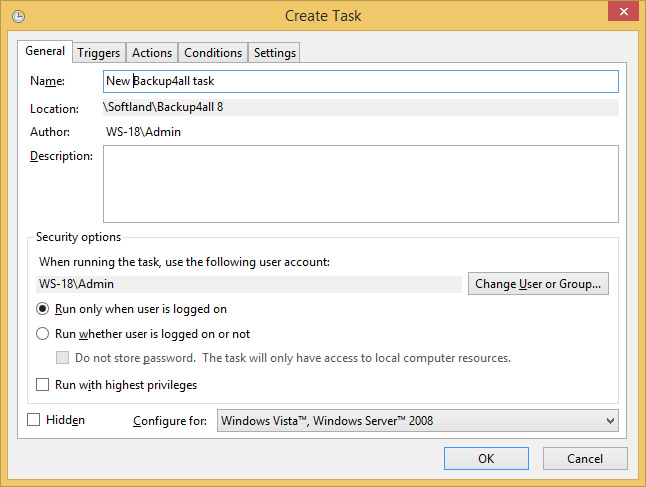
- Type a name for the new task, then go to Triggers tab and press New to set the start time and execution frequency.
- Go to Actions tab and press New.
- For Program/script, select "C:\Program Files (x86)\Softland\*<Backup4all edition>*\bSchedStarter.exe"
- On "Add arguments" field, please type:
- for a backup job /R "backupjobname"
- for a backup tag /R "backuptagname" /TG
- for "All jobs" /AJ
- for "One touch backup" /OTB
- For "Start in" field, enter the Backup4all installation folder: "C:\Program Files (x86)\Softland\*<Backup4all edition>*\" and press OK twice.
Note:
- The *<Backup4all edition>* is the edition of Backup4all installed on your computer.
- In these examples we used the default installation paths. If you installed Backup4all into another location, you have to type the correct file path.