


Google Drive is a file storage and synchronization service by Google. As an extension to Google Docs, it allows users to store all types of files on the Google servers, making it an ideal destination for online backups. This article explains how to use it to store your backups.
This article applies to older versions of Backup4all. If you are using the latest version, you can read an updated article here: How to backup your data to Google Drive.
The service offers 15 GB of free storage for new users. This is enough for many users to keep their online documents and also a backup of their local files. You can put your files on Google Drive using Backup4all. Just back up to the local Google Drive folder and that will be sync with the online storage space. This way you can access the backup from any location and you also have a second backup copy.
How to set up a new Google Drive account
Steps to follow:
- Go to Google Drive and press the “Sign up” button.
- Follow the steps to create a new account.
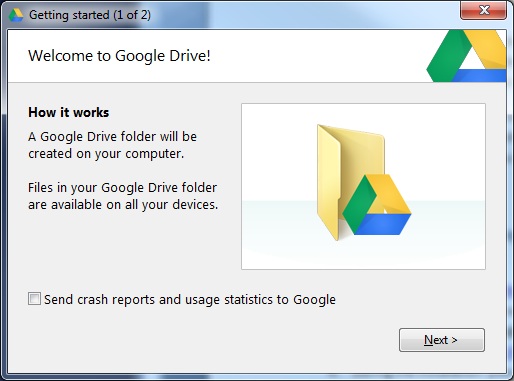
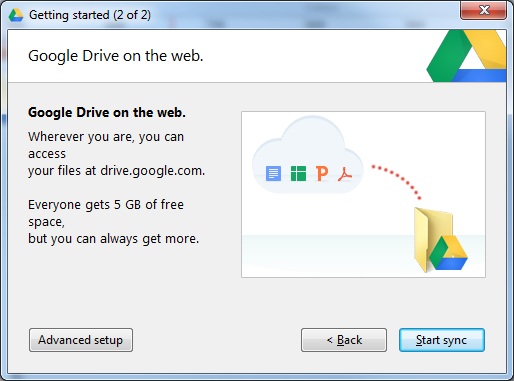
- Download and install Google Drive from tools.google.com/dlpage/drive/index.html?pli=1
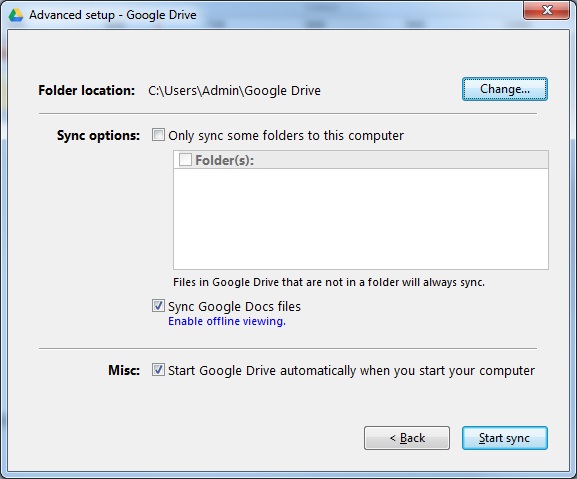
- During the installation, you can indicate the local folder to be sync with Google Drive. By default it is: C:\Users\<user name>\Google Drive
How to backup to Google Drive
- Download and install Backup4all here: Download Backup4all
- Create a new backup job from File -> New backup
On the first page, type a name for the backup job and select the Google Drive folder as the backup destination. By default it is: C:\Users\<user name>\Google Drive. Press Next
- On the second page, add the files and folder you want to backup or select a predefined plugin from the list. Press Next.
- Select the backup type you want to use. By default, the Incremental type is selected. Press Save and run.