


You can backup your data to a USB drive or from a USB drive using Backup4all. This is a practical backup destination as it allows you to store important files to external devices, offering increased portability. It can be considered as an additional protection against data loss as the result of hardware failure or other disasters.
On this page:
Backup to USB or FireWire hard drives
There are external USB hard drives with performance comparable to conventional hard drives. These portable drives (called enclosures) are composed of devices that connect through USB on one side and to conventional hard drives on the other side.
A hard drive is installed into the enclosure and then the enclosure is plugged into the computer, thus creating a normal USB backup device. Given the size of nowadays hard drives, this can be considered a mass storage device for backup purposes.
Some external hard drives use also FireWire as a connection port. On one side FireWire hard drives tend to have increased speed over USB, but on the other side USB ports are more common on computers.
The first step in backing up to USB with Backup4all is starting the device. Usually the enclosure should have a start button and display the status of the drive using led displays. When it is started a green led should be lighted.
Next, you have to make sure the drive is formatted. If you have just purchased the drive and didn’t use it yet, you might have to format it (only if you didn’t use it before, since formatting will erase everything from it). Here's a quick guide to do so:
- Go to Start -> Control panel -> Administrative tools -> Computer Management.
- Under Computer Management click Disk Management then check the right-bottom window (scrolling down if necessary)
- You should see the additional hard drive disk; right-click on it, choose New partition, then follow the instructions to format the hard drive.
- Test to see if the drive is now recognized by going to File Explorer (a new drive letter should appear)
If your USB drive is working correctly, you can set it as a backup destination for an existing backup job in Backup4all, or create a new one.
- For an existing backup job:
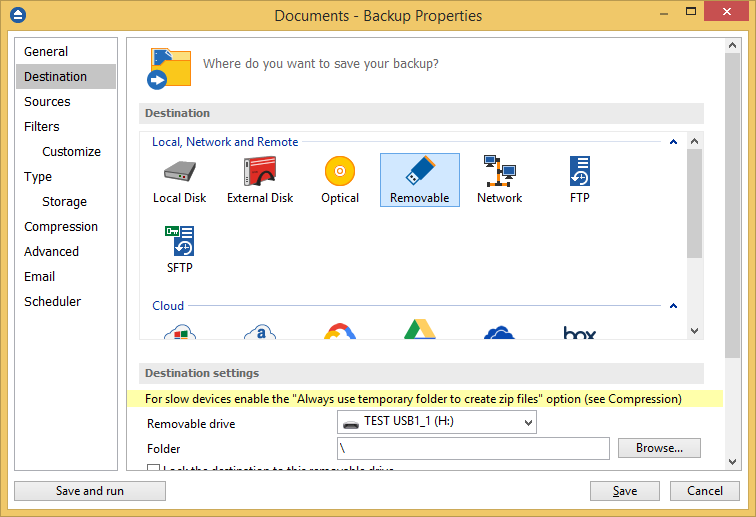
- Select the backup job you want to run, press CTRL+P in order to open the Backup Properties window.
- Go to the Destination and click on the Removable icon.
- Select a drive from the Removable drive drop-down list (your drive should show up in there).
- Click Save to close the Properties window. Now you can run that backup job to store your backups on the USB drive.

- For a new backup job:
- Open Backup4all and select File -> New (Ctrl+N).
- In the Where do you want to save the backup? section, select the USB drive as backup destination. Press Next.
- On the What do you want to backup page, add the backup sources. Press Next.
- On the Filter the backup sources page, you can set include/exclude filters for backup sources. Then press Next.
- On the How do you want to backup page, you can choose the backup type and the encryption.
- On the When do you want to backup page, you can set the backup job to automatically run on the specified time and days. Press Next.
- On the Personalize your backup job page, enter a name for the backup in the Backup name field.
- Press Save and run.
Backup to USB flash drives
An USB flash drive is a small, lightweight, removable data storage device (also known as "pen drive", "thumb drive", "flash drive", "USB key" or "memory stick").
In comparison with other removable storage solutions (CD/DVD drive or Blu-ray discs), flash drives are not so easily affected by scratches or dust and even impacts, and plus they offer a lot of storage space. This makes them ideal for transporting personal data or work files from one location to another, or for backing up important personal data.
Like all flash memory devices, flash drives can sustain only a limited number of write/erase cycles before failure. In normal use, mid-range flash drives currently on the market will support several million cycles, although write operations will gradually slow as the device ages. This should be a consideration when using a flash drive for backup purposes.
Backup4all can be used for USB backup to a flash drive. Launch Backup4all and either define a new backup job to use as destination the flash drive, or change the destination for an existing backup job.
File compression with encryption protection is recommended to be sure that the files are only accessible by the owner and in the event of losing the flash drive the data will not be compromised. Backing up to an USB flash drive is very convenient, since it offers better portability.
The digital audio players (MP3 players) are essentially flash drives with sound output, thus you can backup your multimedia files to an mp3 player using the mirror backup type and be able to listen to them in the same time. So if you have an iPod, you can use Backup4all for ipod backups, meaning backing up the multimedia files that you have on your iPod to your local hard drive (or vice-versa).
USB 3.1/3.2 compatibility
Backup4all also supports and works fine with USB 3.1/3.2 devices. The advantage to back up to an USB 3.1/3.2 device is the transmission speed which is up to 20 Gbit/s, 40 times faster than USB2.0 (480 Mbit/s). USB 3.1/3.2 significantly reduces the time required for data transmission, reduces power consumption, and is backwards compatible with USB 2.0.