


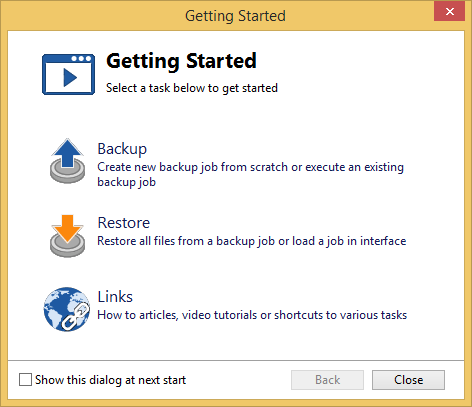
This article will show you how to use the Getting Started window. It can be accessed anytime from Tools -> Getting Started menu.
This window is displayed when you first run Backup4all. You can also access this window if you select Getting Started from the File -> Tools menu.
There are two large buttons for backup and restore and the third button for a list of articles and tutorials about how to use Backup4all.
Backup
Press the Backup button to create or run backup jobs.
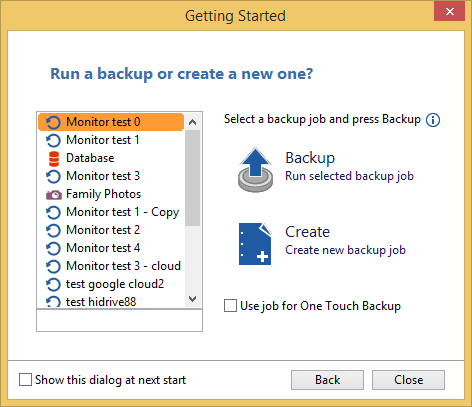
Backup
Select an existing backup job from the list and press Backup to run the selected job.
Create
Pressing the button will open the New Backup Wizard to start creating a new backup job.
If you want to assign the selected backup job to your One touch device, check the Use job for One Touch Button option.
Restore
Press Restore button to Open or Restore a backup job.
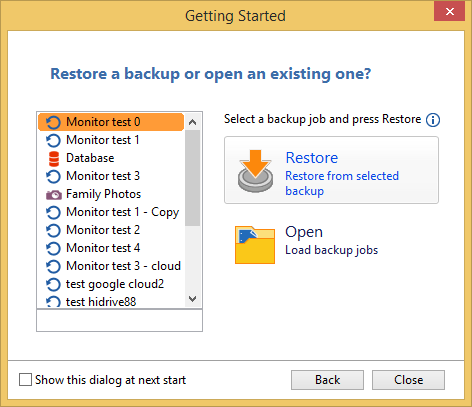
Restore
Select an existing backup job from the list and press Restore to open the Restore Wizard.
Open
Use this button to recreate a backup job from the backup catalog (.bkc) or from the initialization file (.ini).
The recreated backup job will be added to the backup jobs list.
Links
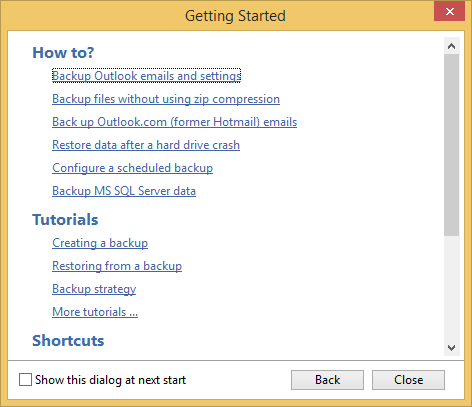
On this page there is a list of "how to" articles, a list of "Tutorials" and another list of "Shortcuts". Pressing a link will open the corresponding article in your default browser.
If you don't want to show the Getting started window next time you open Backup4all, uncheck the Show this dialog at next start option.
By default this option is checked.