


Backup to CD is really easy if you use Backup4all, you just have to set the backup destination to the CD burner drive and run the backup. Backup4all has its own features especially useful for backups to CDs.
On this page:
Backup to CD media is not as popular as backing up to DVD (given the larger size, especially since Blu-ray discs are now available), but when your sources are not that large in size, it could be a possible alternative to classic backup media.
If you plan to do a backup to CD, please consider our recommendations:
- Do not use the same CD to store consecutive backup versions. It’s better to use different CD media for each backup version (change the CD media at each backup run). Use a set of CD media and rotate them periodically (*e.g.: take 7 CD media, one for each weekday; start with the first CD again every 7 days*). The reason for this is that in case the burn process fails, you still have the previous backup version on a different disc.
- Rewritable CD media can be burned only a limited number of times. When strange errors happen first consider whether if the CD might be overburned (worn out).
- Always test the backed up data after burning. Backup4all has a special option to automate the test after backup.
How to backup to CD with Backup4all
Backup4all makes the backup to CD process be easy to perform, through its new backup wizard:
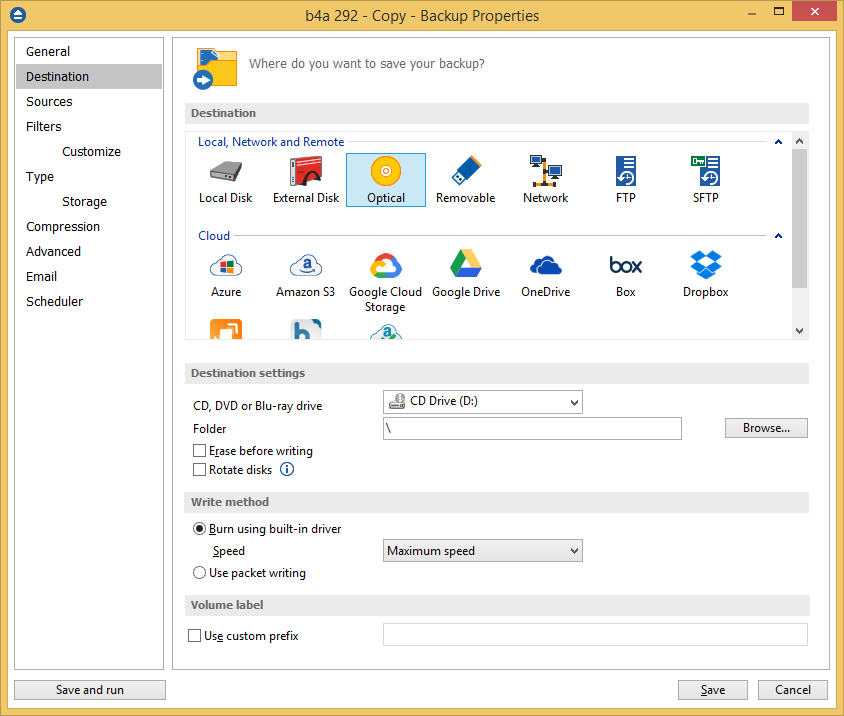
- In the first step, select where will the backup be saved. Click on CD, DVD or Blu-ray and select the drive letter where you will store the backup files. Click Next.
- Select what files and folders you want to backup. Click Next.
- On the Filter the backup sources page, you can set include/exclude filters for backup sources. Then press Next.
- On the How do you want to backup page, select the type of backup you want to use. If you want to use zip compression select Full/Differential or Incremental, if you want the files to be backed up to CD without compression select the Mirror backup type (make sure the Zip the files checkbox is not selected, as that allows you to zip files individually).
- On the When do you want to backup page, you can set the backup job to automatically run on the specified time and days. If you schedule this backup, just remember that you will need to have the CD you want to backup to in the CD drive, otherwise, the backup will not run. Press Next.
- On the Personalize your backup job page, enter a name for the backup in the Backup name field.
- Click the Save button and select either Save and run to execute the backup now, or only Save to have it in the backup job lists from where you will run it manually (or if scheduled it will run automatically)
Backup4all has features that are specifically suitable for backing up to CD:
- Internal CD burning engine. By default, Backup4all uses one of its own built-in burning engines to backup to CD media (you do not need third party drivers or burning software installed). However, if you prefer using third party packet writing software, you can select it in the Backup Properties -> CD, DVD or Blu-ray -> Write Method -> Use third party packet writing software.
- Spanning the backup onto multiple CDs. If the backup does not fit on one CD, this CD backup software will automatically span the backup over multiple CD discs. Each disc is assigned a different label for future identification. We recommend marking the CD with this label.
- Backup to CD automatic testing. At the end of the backup, Backup4all will check the written data to be sure of its integrity. This way you can be sure that the backed up data is safe and you can always restore it.
- Erase CD tool. If the CD is erasable (CD-RW), you can use Backup4all's own Erase CD/DVD/Blu-ray tool to erase it. Simply put the CD-RW disc in the CD burner, and from Backup4all's interface go to Tools and select Erase CD/DVD/Blu-ray. This will launch the erase tool and you can clean the data from the CD-RW. Backup4all can automatically erase the CD-RW disc before writing to it - to do so in Backup Properties go to CD, DVD or Blu-ray and in the Destination section check the Erase before writing option.
This will delete all the data from the CD-RW before writing the backup to it.
Use built in burner
Backup4all does not need third party drivers or other burning software installed (like ActiveX, ASPI, etc) to be able to burn a CD. The application has two built-in CD burners to backup directly to CD.
Read the Use built in burner page for more details on using this burning method.
Use packet writing
If you do not wish to use one of the built-in burners of Backup4all to make a backup to CD, or if your CD device is not compatible with this CD backup software, then you can use a third party packet writing software (InCD or DirectCD).
Read the Use packet writing page for more details on using this burning method.
Besides backing up to CD, Backup4all supports also burning a backup to DVD. For an article on how to backup to DVD, please refer to this article: Backup to DVD