


When performing a large incremental backup to an FTP destination, it may take a lot of time for the first backup to complete (because the first backup is a full backup so all files will be included in it). If you have physical access to the FTP destination server, it takes less time to run the first backup locally, move the backup file to the FTP, and after that continue doing the incremental backups directly to the FTP destination. This article will explain how to perform this backup.
On this page:
- Make a full backup locally and subsequent incremental backups to FTP
- Video Tutorial for the Backup Strategy
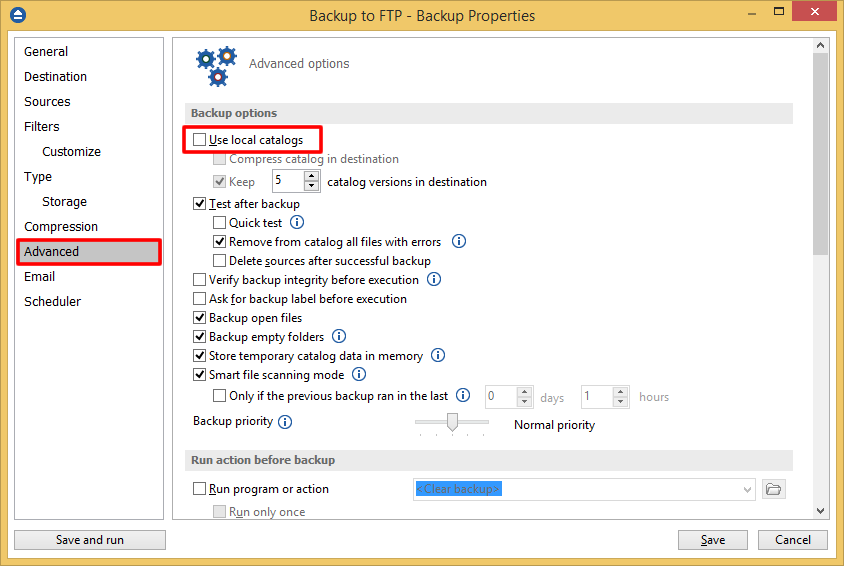
The .bkc catalog file is stored in two locations: in the destination folder and locally in the catalog folder. If the local catalog is used, when the user changes the destination of the backup the local catalog is deleted, and a full backup to the new destination will be made.
The backup strategy is:
- Create the full backup to a portable drive (that you can use to move the backup files to the FTP destination).
- Move the backup files and the catalog to the FTP server.
- Change the backup destination to FTP. The backup catalog will be recognized from the FTP server.
- Make the subsequent incremental backups to FTP.
Make a full backup locally and subsequent incremental backups to FTP
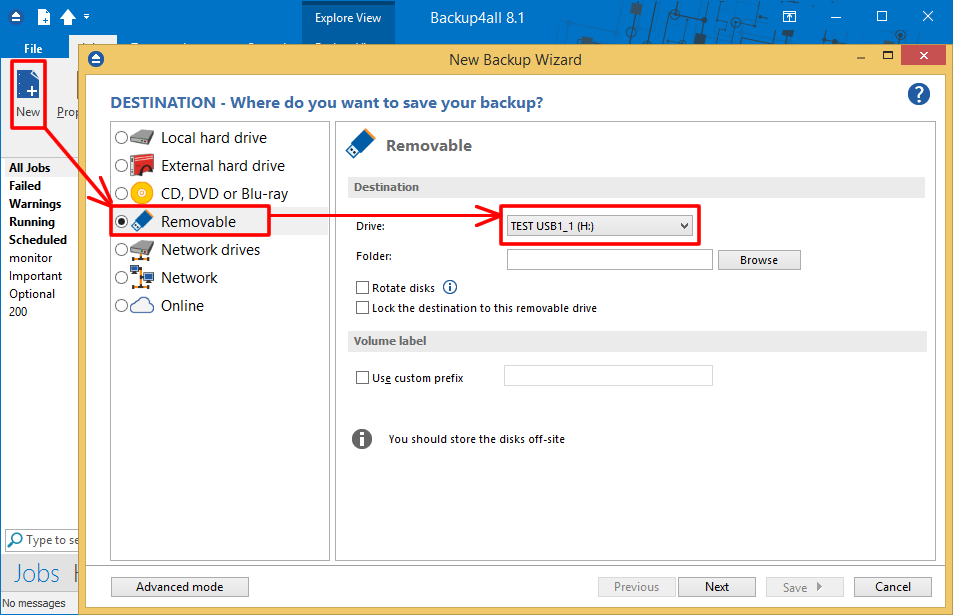
- Open Backup4all and select File -> New (Ctrl+N).
- In the Where do you want to save the backup? section, you can select a removable destination. Click Next.
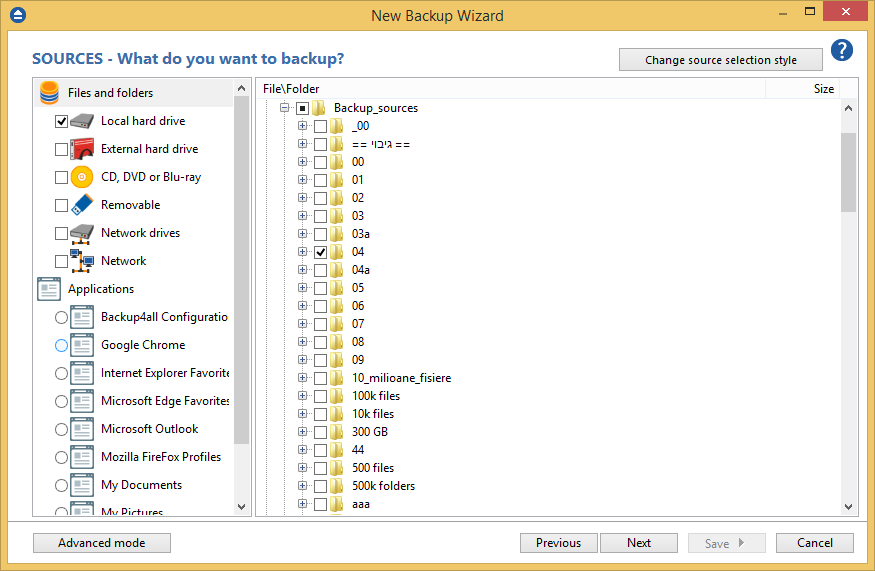
- On the What do you want to backup page, add the files and folders you want to back up. Click Next.
- On the Filter the backup sources page, you can set include/exclude filters for backup sources. Then press Next.
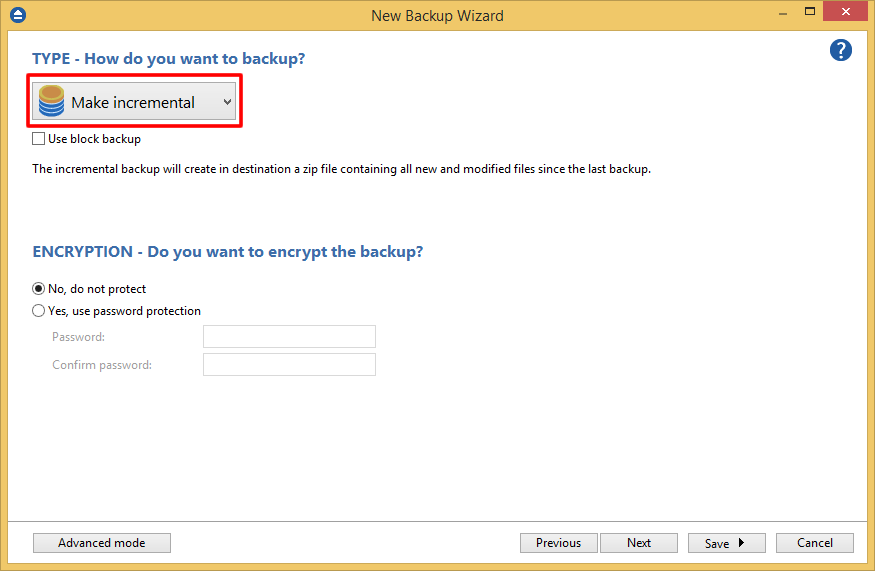
- On the How do you want to backup page, select the Incremental backup type.
- On the When do you want to backup page, you can set the backup job to automatically run on the specified time and days. Press Next.
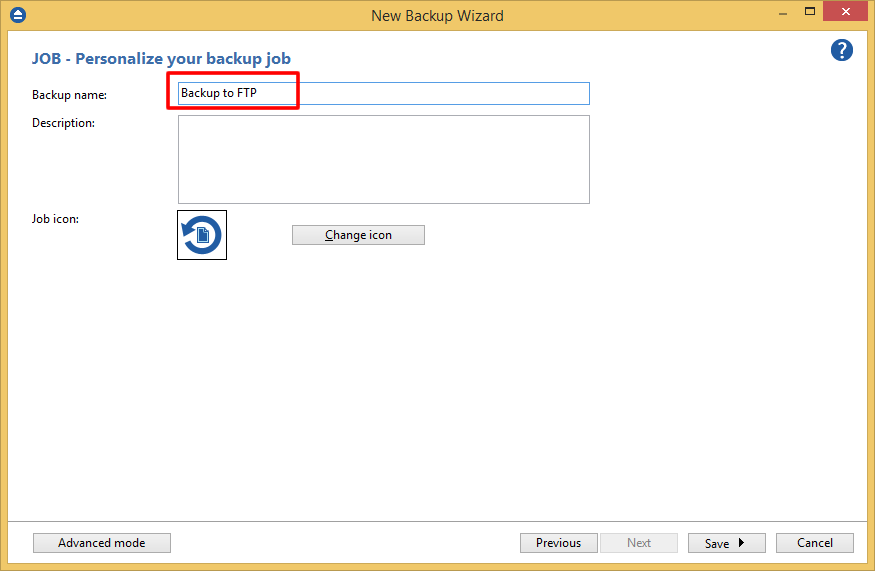
- On the Personalize your backup job page, enter a name for the backup in the Backup name field.
- Press Advanced Mode.
- Go to Advanced page and uncheck the Use local catalogs option.
- Click Save and run
- Move the backup files and the catalog to the FTP server.
- Open Backup4all, go to Backup Properties (Ctrl+P) -> Destination -> FTP.
- Change the destination to the FTP location of the backup. Press Save. The backup catalog from the FTP server will be recognized.
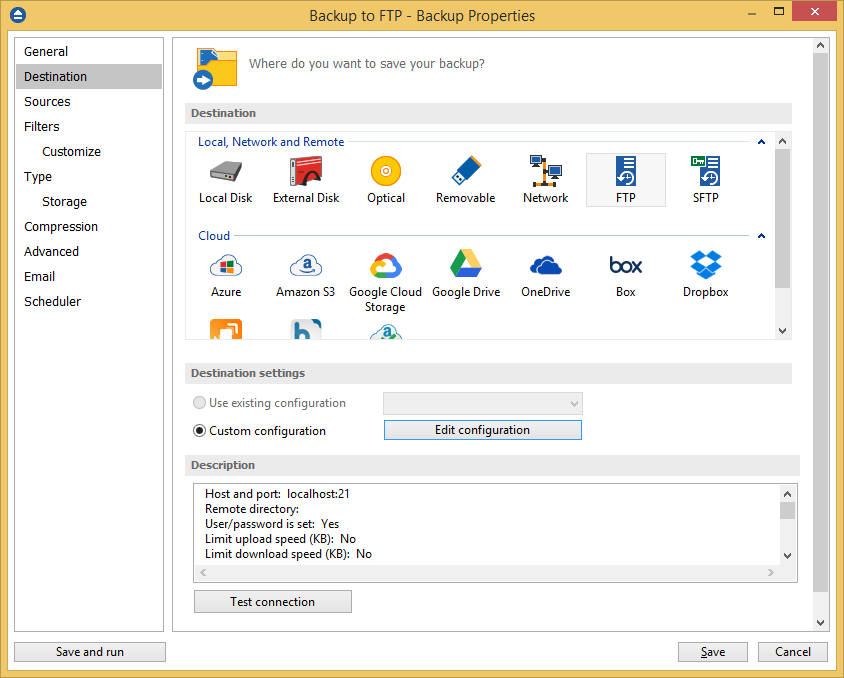
- You can now perform incremental backups to FTP.
Video Tutorial for the Backup Strategy:
Applies to:
Backup4all 5.x - 8.x