


This article provides information on how to back-up Microsoft Outlook automatically or manually. If you are actively using Outlook and rely on it for most of your communications, schedules and contact management, then you realize how important it is to have all that data stored safely.
On this page:
- How to configure an automatic backup for Outlook
- How to manually backup Microsoft Outlook
- Backup limitations for locked or open files
- Restore Outlook limitations
Just imagine what would happen if all of a sudden your system would crash and you would lose all your Outlook information.
The safest way to protect your data is to create regular backups of your Microsoft Outlook data (emails, calendar entries, contacts, etc.) and keep these on removable media (i.e. external drives, Blu-ray/DVDs) or in the cloud (i.e. Google Drive, Dropbox, Amazon S3). With Backup4all is very easy to back-up your Outlook data.
Almost all of the data for Microsoft Outlook is stored in Outlook Data Files (.pst) and offline data files (.ost). In Outlook 2013 and earlier versions, IMAP accounts were also stored in .pst files, however starting with Outlook 2016 and Outlook for Office 365, IMAP accounts use Offline Outlook Data Files (.ost).
This means that by backing these files up you protect the following information: Emails (in all folders, including archived items), Calendar entries, Contacts, Tasks, and Notes. In order to manually do a complete backup of Outlook data, it is not enough to back up only the .pst files, but the following items too:
- Navigation Pane settings
- Print styles
- Signatures
- Stationery
- Custom forms
- Dictionary
- Templates
- Send/Receive settings
Microsoft is using the .ost files (Offline Outlook Data file) to store a local copy of the emails for IMAP accounts. Backing up the OST files is needless and we don't recommend it. Even if you would backup the .ost file you wouldn't be able to restore it and recover the emails from the .ost.
If you want to have a backup of your emails from an IMAP account, first you'll need to create a local copy of the emails (drag-and-drop them into a local Outlook folder from your IMAP's Inbox) and then you can back-up the resulting .pst file.
This is the Microsoft position regarding .ost files: *"Maintaining changes to OST files within shadow copies is expensive in terms of space and I/O activity. The time-consuming work at backup time is backing up the OST files as part of the image. Everyday I/O will write to the OST file when Outlook is running. So the backup process will impact the performance on the computer. If the OST changes were kept in shadow copies, then Outlook writes to the OST files is copy on write I/O hit (2 writes, 1 read)every time. Even though we have worked to reduce the impact of copy-on-writes on shadow copies, a heavily churned file such as OST file still cause problems on the computer. In addition, the OST files can be regenerated. We delete OST file from the shadow copy before the image is created. For example, after restoring an OST, the computer detects a new version of the OST file on the computer, it will force you to delete, and the regenerate the local OST file. Therefore, it is still preferable to regenerate an OST file instead of restoring it."*
How to configure an automatic backup for Outlook (2019, 2016, 2013, 2010, 2007)
Backup4all is a backup program that lets you backup Outlook automatically. Basically, you just have to define a backup job where you define various settings (such as where to keep the back-up, when to run the back-up, what type of backup to use) and that's it, Outlook will be backed up regularly (if you choose to schedule it).
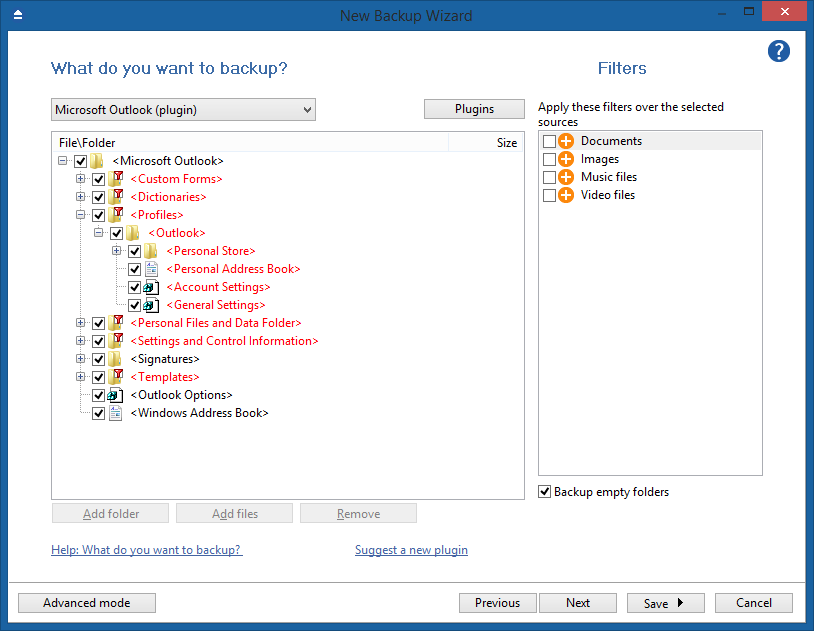
Here are the steps to follow to create a new backup job that will back-up Microsoft Outlook data:
- Open Backup4all and select File -> New (Ctrl+N).
- In the Where do you want to save the backup? section, select a backup destination.
- On the What do you want to backup page, select Microsoft Outlook. Press Next.
- On the Filter the backup sources page, you can set include/exclude filters for backup sources. Then press Next.
- On the How do you want to backup page, you can choose the backup type and the encryption.
- On the When do you want to backup page, you can set the backup job to automatically run on the specified time and days. Press Next.
- On the Personalize your backup job page, enter a name for the backup in the Backup name field.
- Press Save and run to start backing up Microsoft Outlook.
Outlook data is stored in “.pst” files. For each mail folder defined in Outlook, a .pst file is assigned. These files get quite large if you exchange a lot of emails, thus when a small change occurs in a file (e.g. a new email has been received), the entire .pst will be marked as “modified”. When running the backup, the whole file will be backed up as you cannot backup only the changes inside the .pst file. That's why it is recommended to do a full or mirror backup (and not differential or incremental). Also, it is recommended to limit the number of backups in order to save disk space.
How to manually backup Microsoft Outlook
The easiest way to backup outlook is using a tool that automates the process as described in the previous section. However, if you want you can also backup Outlook manually by copying the files/folders to a specific destination.
This has the disadvantage that it takes quite some time to find all the files, not to mention that in order to restore these you would have to follow these steps again. Below you can see the locations for the files/folders that need to be backed-up for different versions of Outlook.
Outlook 2019, Outlook 2016, Outlook 2013
The path for each file/folder that needs to be backed up is mentioned below:
- Navigation Pane settings
drive:\Users\<username>\AppData\Roaming\Microsoft\Outlook\profile name.xml
- Email, calendar, contact, task and notes information for POP and IMAP accounts (.pst, .ost files)
drive:\Users\<username>\AppData\Local\Microsoft\Outlookdrive:\Users\<username>\Roaming\Local\Microsoft\Outlook
- Print styles (Outlprnt file)
drive:\Users\<username>\AppData\Roaming\Microsoft\Outlook\Outlprnt
- Signatures
drive:\Users\<username>\AppData\Roaming\Microsoft\Signatures
- Stationery (can be in two different locations depending on whether you have the 32-bit/64-bit Outlook)
- Windows (64-bit Outlook)
drive:\Program Files\Common Files\Microsoft Shared\Stationery
- Windows (32-bit Outlook)
drive:\Program Files (x86)\Common Files\ Microsoft Shared\Stationery
- Windows (64-bit Outlook)
- Custom forms
drive:\Users\<username>\AppData\Local\Microsoft\Forms
- Dictionary (.dic files)
- drive:\Users\<username>\AppData\Roaming\Microsoft\UProof
- Templates (.oft files)
drive:\Users\<username>\AppData\Roaming\Microsoft\Templates
- Send/Receive settings (.srs file)
drive:\Users\<username>\AppData\Roaming\Microsoft\Outlook
Outlook 2010, 2007
The path for each file/folder that needs to be backed up is mentioned below:
- Outlook Data File (.pst)
drive:\Users\user\AppData\Local\Microsoft\Outlook
- Offline Outlook Data File (.ost)
drive:\Users\user\AppData\Local\Microsoft\Outlook
- Personal Address Book (.pab)
drive:\Users\user\AppData\Local\Microsoft\Outlook
- Offline Address Book (.oab)
drive:\Users\user\AppData\Local\Microsoft\Outlook
- Navigation Pane settings (.xml)
drive:\Users\user\AppData\Roaming\Outlook\profile name.xml
- Registered Microsoft Exchange extensions (.dat)
drive:\Users\user\AppData\Local\Microsoft\Outlook
- Outlook contacts auto-complete list
drive:\Users\user\AppData\Roaming\Microsoft\Outlook
- Rules (.rwz)
drive:\Users\user\AppData\Roaming\Microsoft\Outlook
- Print styles (Outlprnt)
drive:\Users\user\AppData\Roaming\Microsoft\Outlook
- Signatures (.rtf, .txt, .htm)
drive:\Users\user\AppData\Roaming\Microsoft\Signatures
- Stationery (.htm)
drive:\Program Files\Common Files\Microsoft Shared\Stationery
- Custom forms
drive:\Users\user\AppData\Local\Microsoft\Forms
- Dictionary (.dic)
drive:\Users\user\AppData\Roaming\Microsoft\UProof
- Templates (.oft)
drive:\Users\user\AppData\Roaming\Microsoft\Templates
- Send/Receive settings (.srs)
drive:\Users\user\AppData\Roaming\Microsoft\Outlook
- Message (.msg, .htm, .rtf)
drive:\Users\user\Documents
Backup limitations for locked or open files
Backup4all uses the Volume Shadow Copy service that allows you to back up local open files from NTFS partitions under Windows10/8.1/8/7/Vista/XP/2008/2003. Therefore you can back up Outlook without closing it if certain requirements are met:
- the computer is running Windows 10, 8, 7, Windows 2008 Server, Windows Vista, Windows XP and Windows 2003
- Microsoft Outlook data is not being backed up via the network
- Microsoft Outlook data is located on an NTFS formatted partition
- the VSS (Volume Shadow Service) is running and is properly configured If any of the requirements above are not met, Outlook will need to be closed before backing up the data (otherwise files that are in use will be skipped).
Restore Outlook limitations
The backup and restore for Outlook works only if you have:
- the same version of Windows
- the same version of Outlook on both the backup and restore computers
- the same user name