


Send Email notifications is a very useful feature that enables Backup4all to send an email with information about the status of the performed backup job upon its completion.
On this page:
- Enabling email notifications
- Sending email notifications
- How to configure the email notifications using a SMTP server
Enabling email notifications
- Open File -> Options -> Email
- Check the Enable email notifications box
- Enter the following details:
- SMTP Server - specify the name or IP address of the SMTP server used for sending the mail (example: smtp.novapdf.com) in the Server name or IP field and a Port number for it (usually is 25); you can also use SSL or TLS when connecting to the SMTP server.
- Email addresses - you must specify the email address used to send the email (From field) and optionally a Reply To email address.
- Authentication - if the SMTP server requires authentication check the Server requires authentication box and enter an user name and a password.
- Dial-up connection - if you are using a dial-up connection select from the drop-down box a method that Backup4all should use to be able to send emails: automatically connect (it will connect without user assistance) or manually connect (it will require user assistance to enable the connection).
- Click on the Send test email button from the SMTP Server section and enter the email address where you want to receive the notification. Once you press OK you should receive a test email. If you didn't receive it, you must revise the settings you configured.
- Press OK to save your settings
Sending email notifications
You have to enable separately for each backup job the option to send emails. To do so, follow these steps:
- Select a backup job and open the Backup Properties window (right click and select Properties or Ctrl+P)
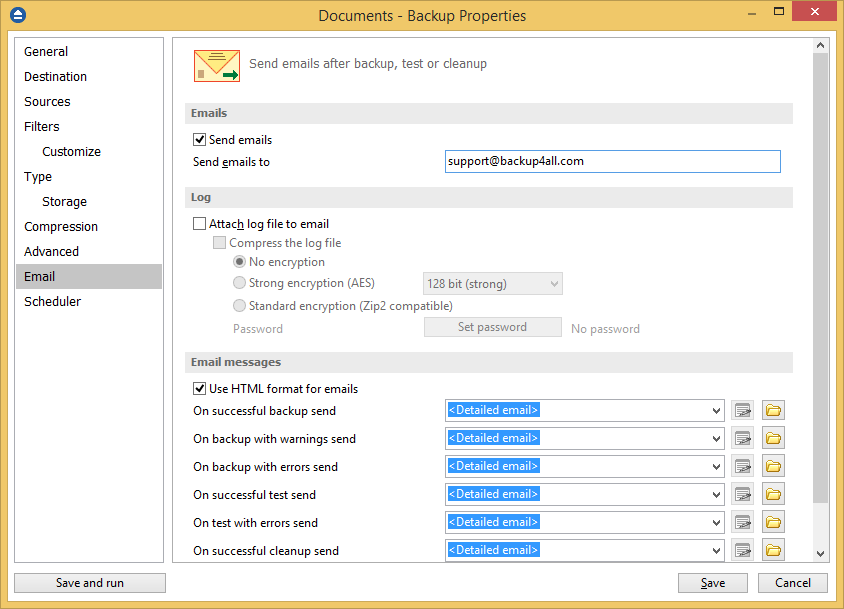
- Go to the Email page and check the Enable email notifications option and enter the email address where the notifications will be sent.
- Optionally you can edit the default emails sent and also to attach the backup log to the email
- Press OK to save your changes.
How to configure the email notifications using a SMTP server
There are two places where the settings needs to be configured:
- the SMTP server settings in File -> Options -> Email


- the email settings in Backup Properties -> Email

Follow these steps to configure the email notifications:
- Go to File -> Options -> Email
- Check the Enable email notifications option
- In Server name or IP field, type the SMTP server name received from your provider
- In Port field, type 465 or 587
- Select the SSL or TLS option
- In the Email addresses section, enter your email under From field
- In the Authentication section, check Server requires authentication
- Enter your username ([email protected]) and password
- Press OK
- Go to Backup Properties -> Email
- Check the Send emails option and type your email address.
- Press Save