


This article explains how to configure backup jobs to run sequentially. A backup job (a tag or group of jobs) can be configured to run right after another backup job is finished.
On this page:
- How to configure a set of jobs to run one after the other
- How to configure a backup job to start after another backup job finishes
- Video Tutorial how to configure the backup job
- How to configure a backup tag/group to start after a backup job finishes
- Video Tutorial how to configure the backup tag/group
A backup job (or a tag) can be configured to run right after another backup job is finished. In Backup4all, for each backup job, an action can be performed before or after that backup job runs. Since Backup4all supports command line parameters too, that action can be a command line instruction. So the first backup job will have an after-action added that will start the second backup job using command line instructions.
How to configure a set of jobs to run one after the other
When you have a set of jobs that you need to run sequentially, you can use a tag to set them up. Create a new tag and assign that tag to all jobs you want to run sequentially. When you run the backup tag, all jobs containing that tag will be executed one after another.
This solution is useful when you want to manually or scheduled run multiple backup jobs, but you want to use limited computer resources or bandwidth (one job at a time will be executed). The solution can be also used when setting up different scenarios where the backup jobs must run in a specific order.
A backup tag can be scheduled the same way as a backup job. Open the Scheduler (F11) page and create a new scheduled task, selecting the tag to be executed.
How to configure a backup job to start after another backup job finishes
Some situations require running two or more backup jobs one after the other in order to accomplish a backup scenario. Such a situation is when an user wants to back up to multiple destinations.
In the first example, you just need to put bbackup.exe /r Job2 in Backup Properties -> Advanced -> Run action after backup section of the Job1. That will start the backup for Job2.
In the second example we will have 2 backup jobs: Job1 and Job2 scheduled to run at the same time, but configured to run one after the other. Job1 will create a text file at the end of the execution, while Job2 will wait for the text file name to appear. When the text file will be generated, that means Job1 was executed and Job2 will start. The text file is deleted after the execution of Job2.
First, you need to create 3 batch files:
- after_job.bat will contain the following text:
type NUL > <path_to_backup_done>\backupdone.txt - before_job2.bat will contain:
@echo off :wait IF NOT EXIST <path_to_backup_done>\backupdone.txt (echo Job1 not finished. Sleeping for 5 seconds call timeout /T 5 goto wait ) - after_job2.bat will contain:
del <path_to_backup_done>\backupdone.txt
*Don't forget to replace the "*<pathtobackup_done>*" with the correct path on your computer.*
Here are the steps to set up the jobs:
- Open Backup4all and go to File -> New.
- Select the destination, then press Next.
- Select the backup sources and press Next twice.
- Select the backup type and press Advanced mode.
- Go to General page and set a name for this job.
- Go to Advanced page and select "Run program or action" option under the "Run action after backup" section, then choose the "after_job1.bat" file to be executed after the backup.
- Press Save.
- For the second backup job, repeat steps 1 to 5
- Then go to Advanced page and select "Run program or action" option under the "Run action before backup" section, then choose the "before_job2.bat" file to be executed before the backup.
- On the same page select "Run program or action" option under the "Run action after backup" section, then choose the "after_job2.bat" file to be executed after the backup.
Video Tutorial how to configure the backup job:
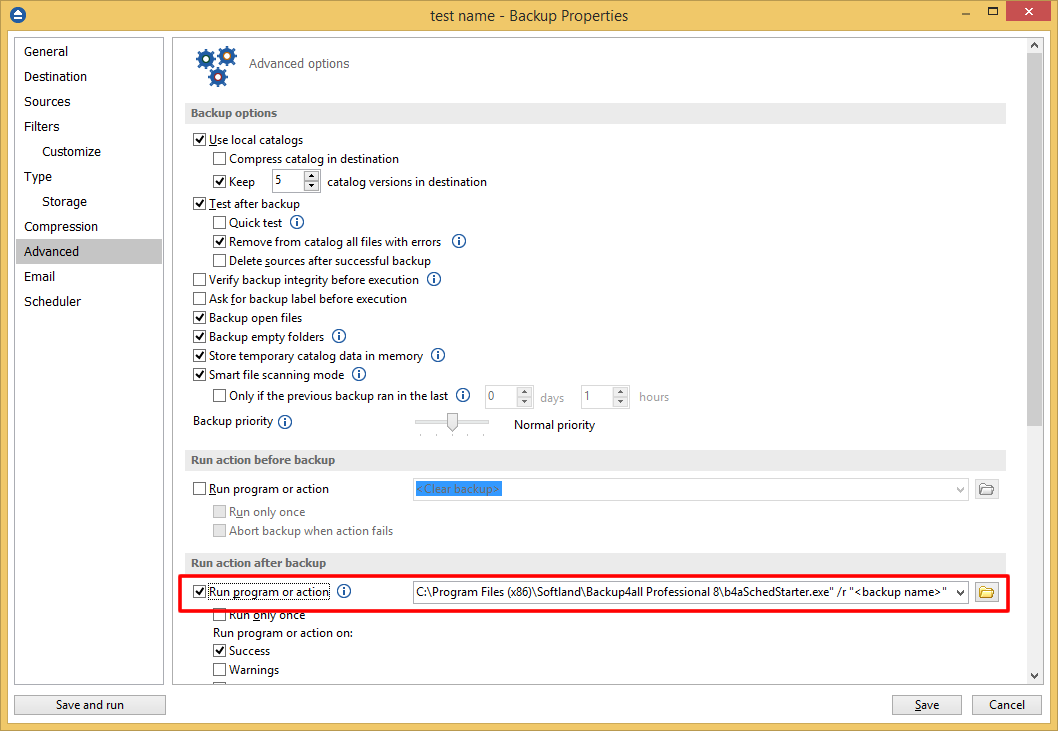
Note: <*backup name*> is the name of the backup job that you want to run after the current backup job finishes, so in this example that would be Backup_job2.
How to configure a backup tag to start after a backup job finishes
A backup tag can be configured to start after a backup job finished running using command line instructions.
Step by step instructions on how to start a backup tag (NewTag) after a backup job (Backupjob1) finished running:
- Open Backup4all and select File -> New (Ctrl+N).
- Press Advanced mode button.
- On the General page enter a name for the backup (Backup_job1) in the Name field.
- On the Destination page, select a destination for backup.
- On the Sources page, add the files and folders to be backed up.
- On the Type page, select the backup type. By default, the incremental type is selected.
- On the Advanced page, go to the Actions tab.
- In the After backup section, check the Run program/action option and type:"C:\Program Files (x86)\Softland\Backup4all Professional 8\b4aSchedStarter.exe" /TG "<*tag name*>"
- Click Finish.
Video Tutorial how to configure the backup tag:
Note:
<tag name> is the name of the backup tag that you want to run after the current backup job finishes. 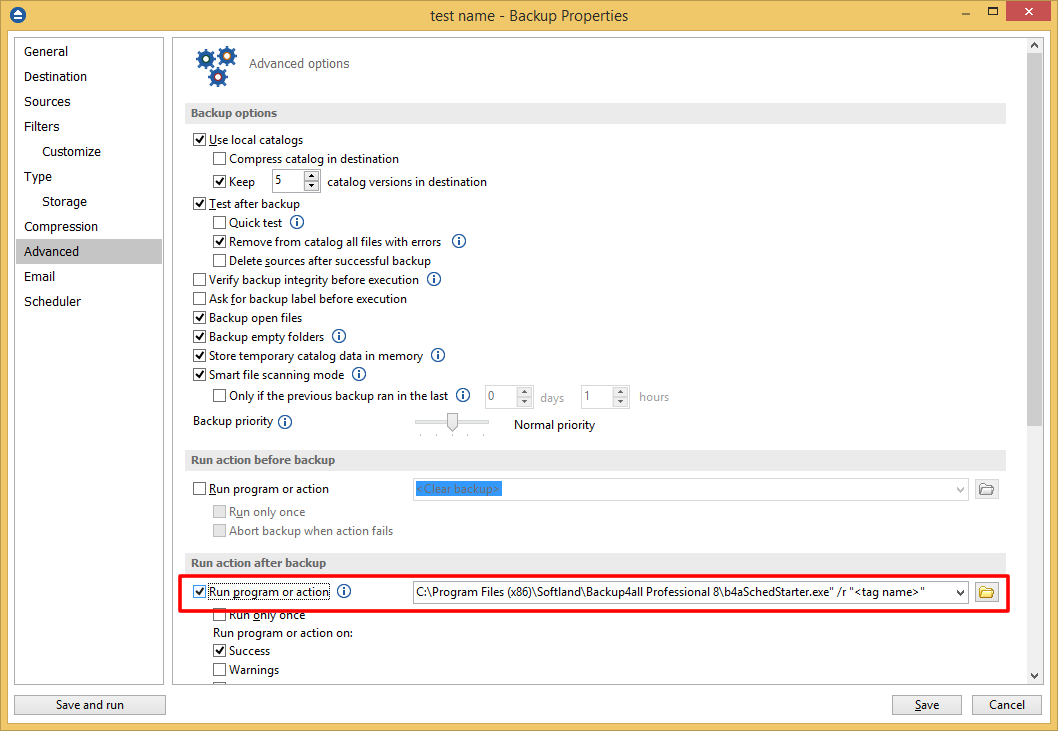
Applies to:
Backup4all 8.x