


To create a new backup job, click on the "New" button from the application's toolbar. For each backup job you must specify at least its name, a valid storage destination and the source files, the rest of the options not being mandatory. In New Backup Wizard, you can switch anytime to Advanced mode for more configuration options.
These are the steps you must perform in the New Backup Wizard:
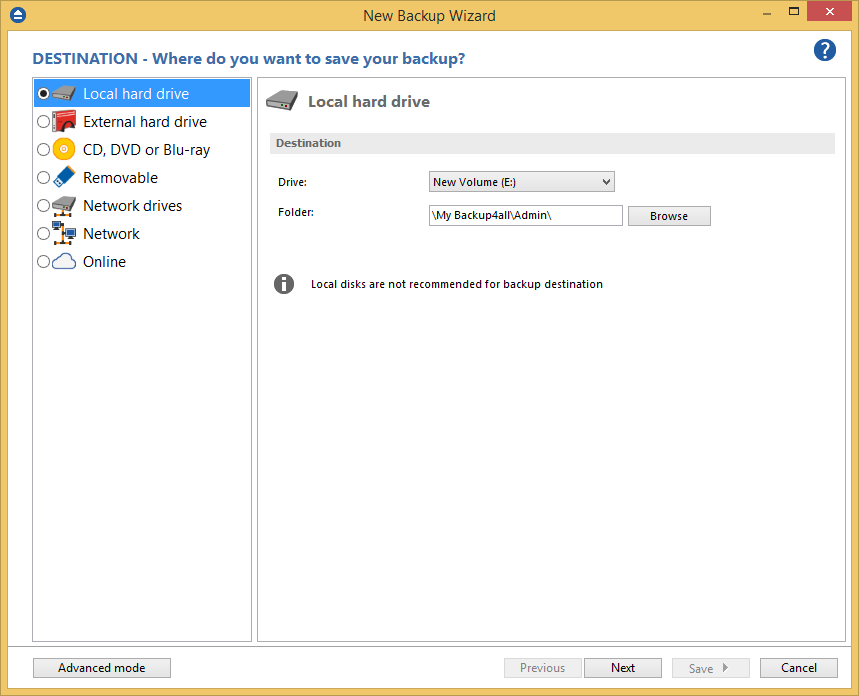
- Select a location where you want to save the backup. Then you can click Next to go to the following step. You can choose as destination:-a Local hard drive-an External hard drive-a CD, DVD or Blu-ray drive-a Removable drive-a Network drive-a Network location-an Online location (FTP, SFTP, Azure, Amazon S3, Google Cloud Storage, Google Drive, OneDrive, Box, Dropbox, HiDrive, S3 Compatible)

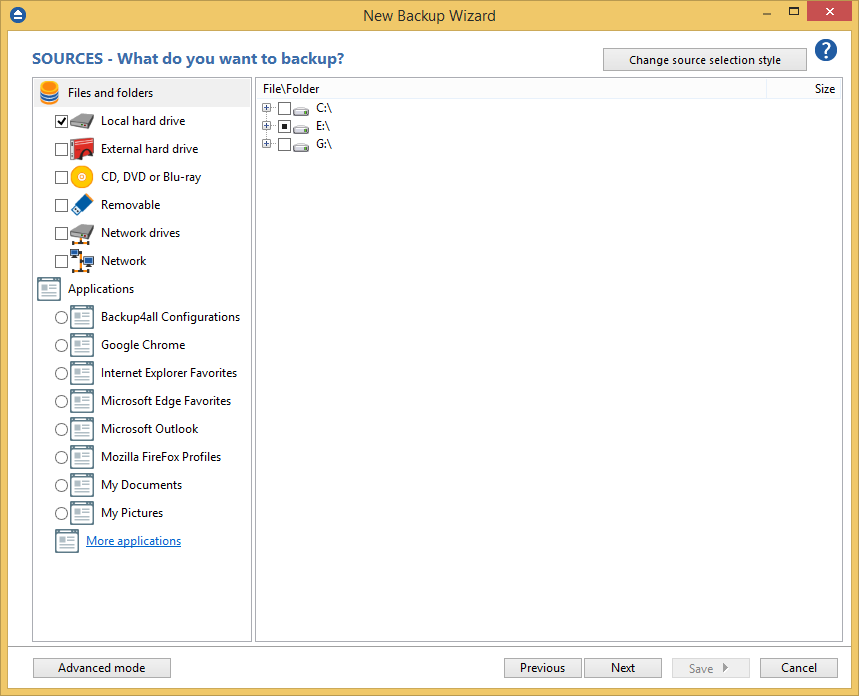
- Select the files and folders you want to backup (sources of the backup) or choose a predefined plugin from the Applications list on the left, then click Next.

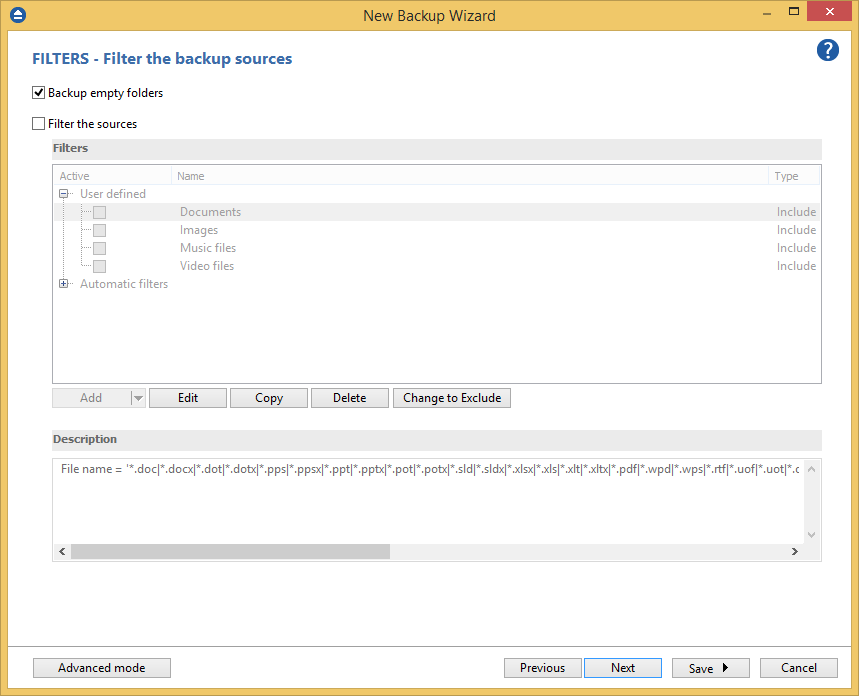
- Select or define new filters for the backup sources, on the Filters page. Then you can press Next and go to the following step.

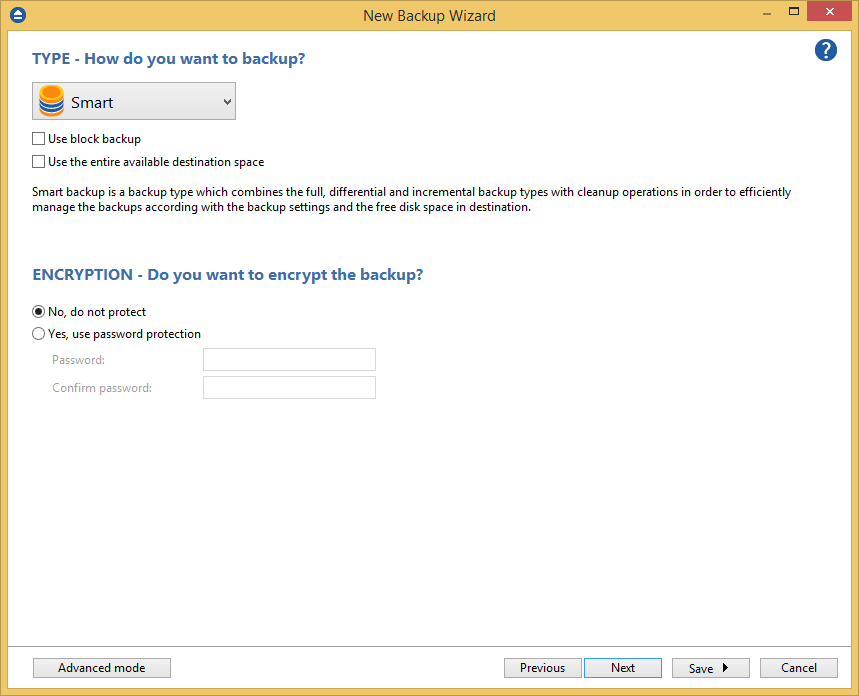
- Select how do you want to backup. By default, the Smart backup type is selected. The other backup types are also available: Full, Differential, Incremental and Mirror. You can also use encryption for the backup types that creates zip files.

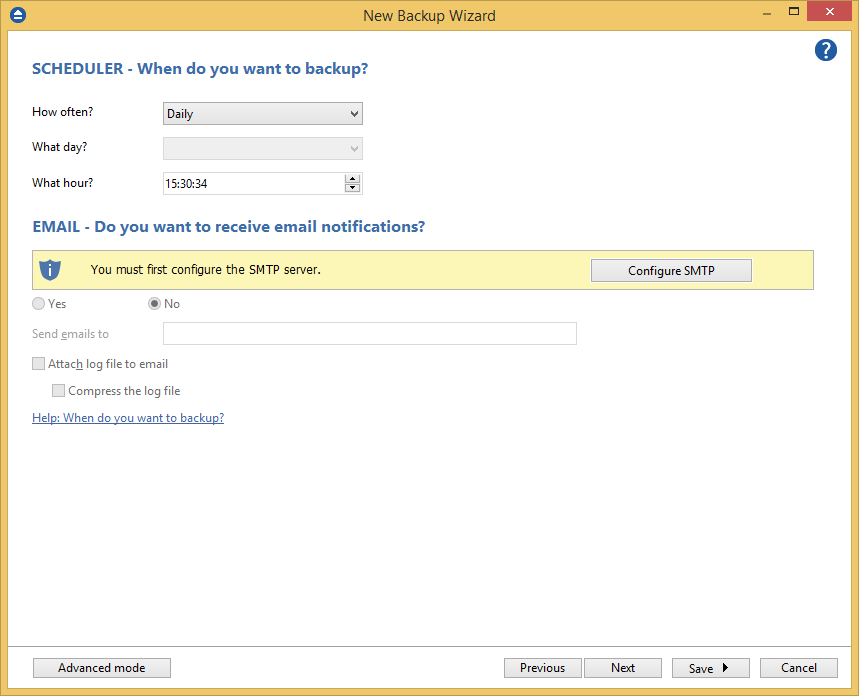
- Choose when do you want to backup: how often, what day and what hour. Schedule the backup job for unattended backup executions.

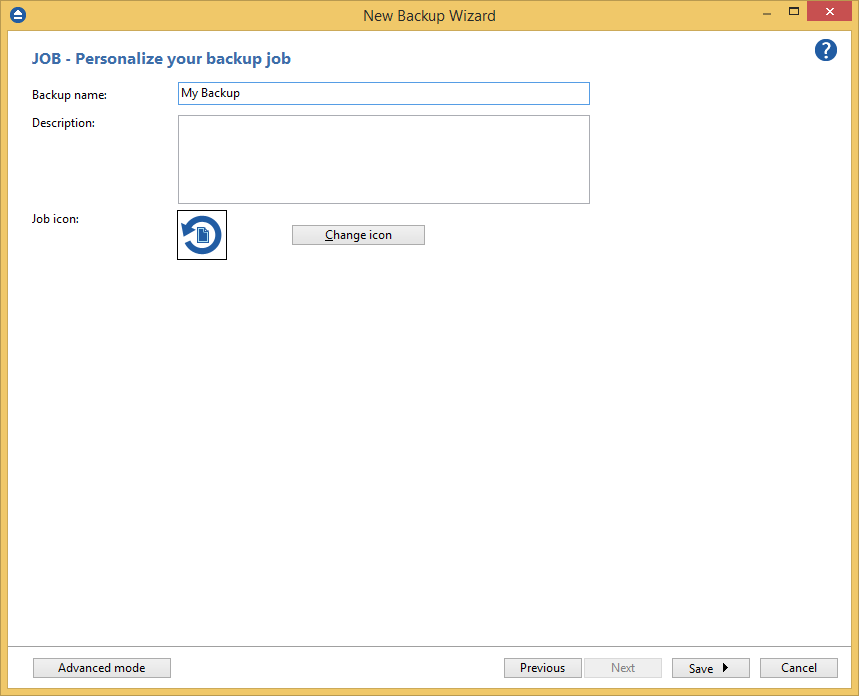
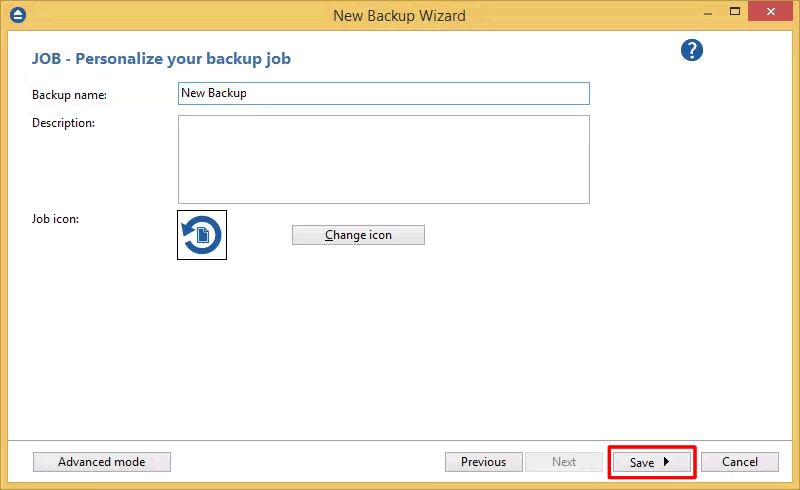
- Personalize your backup job by entering a name for the job. You can also select another icon for the backup job.

- Press Save->Save and run, to start the backup execution.

Backup4all provides extended information about the backup, which can be consulted before the backup execution. You can switch between views by selecting one of the available views from the drop down list:
- Explore - shows the source files and folders for the backup job
- Backup - shows the list of backup executions with the sources status before each execution
- Statistics - shows statistics about the latest backup and the next backup job
The wizard creates an ".ini" file in the Jobs folder (usually in
C:\Users\<user>\AppData\Roaming\Softland\Backup4all X\) with the backup job's ID name. In addition, a backup catalog file (".bkc") is created both in the destination and locally in the Catalogs folder (same directory where the Jobs folder is created).Manually modifying ".bkc" or ".ini" files may result in corrupted backup jobs and the impossibility of restoring the data you backed up. A backup job is automatically created when double clicking on a ".bkc" file. You can also recreate the backup job by opening a ".bkc" or ".ini" file from the File -> Open menu.
Once the backup job is created, it will be displayed in the application's main window. On the right, you will see the content of the backup job (files and folders), depending on the chosen view (explore, backup or statistics).