


This article explains how to back up Outlook.com (former Hotmail) emails with Backup4all. You can back up your Outlook.com emails by using Microsoft Outlook, Windows Mail or Thunderbird with the corresponding Backup4all plugin.
On this page:
- Backup Outlook.com (former Hotmail) emails using Microsoft Outlook
- Backup Outlook.com (former Hotmail) emails using Windows Mail
- Backup Outlook.com (former Hotmail) emails using Mozilla Thunderbird
The first step in backing up your Outlook.com emails is to add that account in your locally installed email client. You can download the email from Outlook.com by adding it as an IMAP account in one of the following email clients: Microsoft Outlook, Windows Mail or Mozilla Thunderbird. These application will retrieve your emails from the server and download them to your computer in the application email files. Using Backup4all, you can back up any of these applications: Outlook Express, MS Outlook, Windows Mail or Mozilla Thunderbird.
How to backup Outlook.com (former Hotmail) emails using Microsoft Outlook
If you have Microsoft Outlook installed, you can add a new account for your Outlook.com email to have emails stored locally.
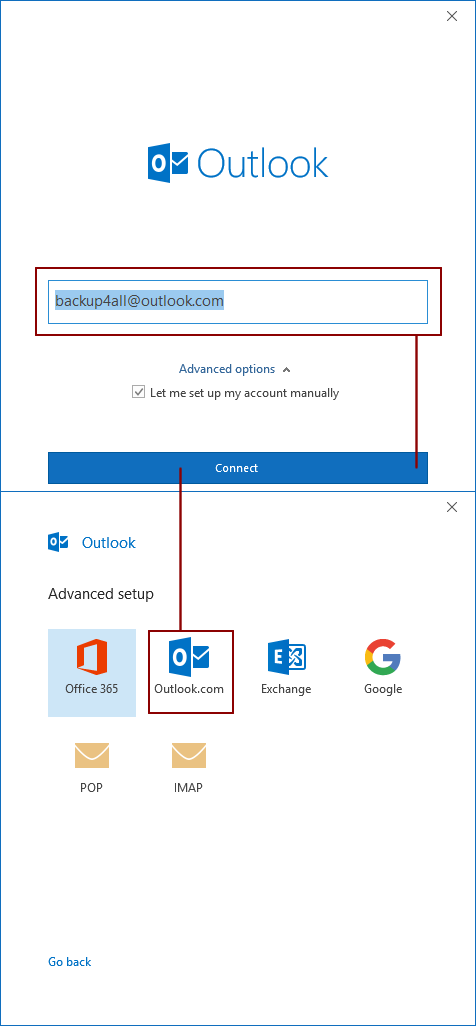
Here's how you can configure Outlook.com in Microsoft Outlook and then back-up your emails:
- Add your Outlook.com email account in Microsoft Outlook:
- Open Outlook (2013, 2016 or later).
- If it's the first time you're opening Outlook, a new window will ask you to enter your email address and it will automatically configure the account. If you already have other accounts defined, on the File tab, under Account Information, select Add Account.
- Select E-mail Account, and then enter your name.
- Enter the address and password of the email account that you want to add. Retype your password, and select Next.
- Outlook will automatically configure the account by checking the connection, downloading the account settings and logging you in.
- You'll see a Congratulations! message shown when everything is correctly configured. Select Finish, and then restart Outlook.
- Access the newly created account in Microsoft Outlook and wait for the application to download your emails.
- Open Backup4all and select File -> New (Ctrl+N).
- In the Where do you want to save the backup? section, select a destination for the backup and click Next.
- On the What do you want to backup page, select Microsoft Outlook. This will automatically add all the necessary Microsoft Outlook files as a source for the backup. Press Next.
- On the Filter the backup sources page, you can set include/exclude filters for backup sources. Then press Next.
- On the How do you want to backup page, you can choose the backup type and the encryption. It is recommended to leave Smart as the default backup type.
- On the When do you want to backup page, you can set the backup job to automatically run on the specified time and days. Press Next.
- On the Personalize your backup job page, enter a name for the backup in the Backup name field.
- Press Save and run.
How to backup Outlook.com (former Hotmail) emails using Windows' Mail app
Windows 8/10 comes with a default Mail app included that can be used to set up the Outlook.com account locally.
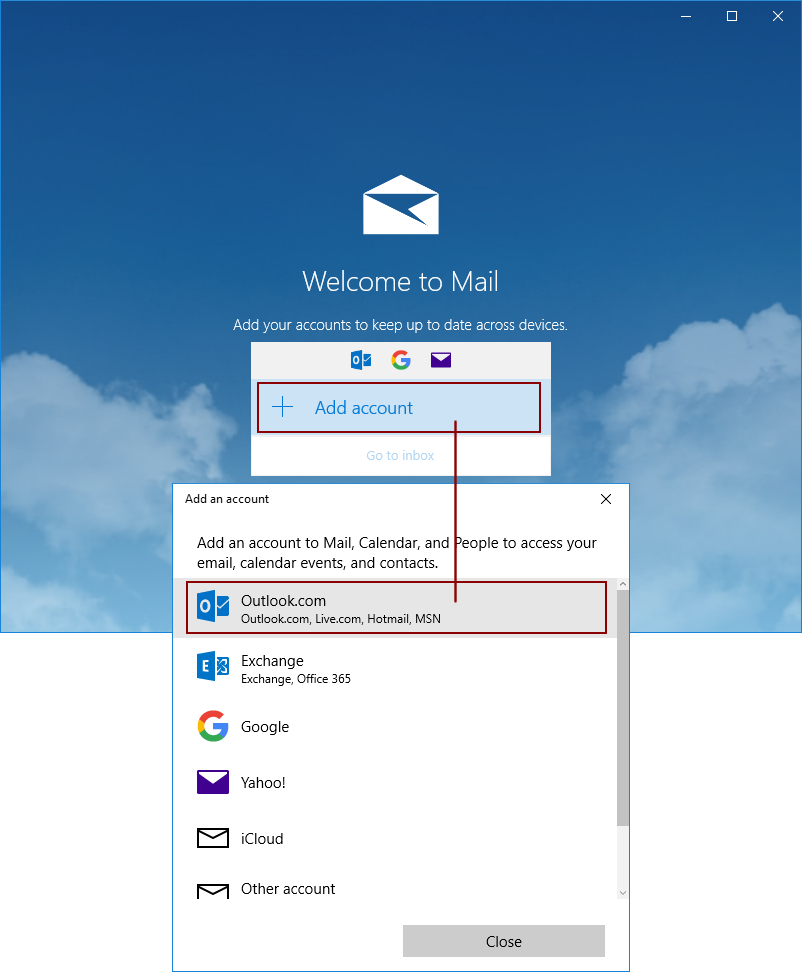
Here's how you can configure Outlook.com in the Mail app and then back-up your emails:
- Add your account in the Mail app by entering the email address and password:
- Open the Mail app by clicking the Windows Start menu and choosing Mail.
- Select Add account to get started if it's the first time you've used the Mail app, or from the bottom of the left navigation pane, select Settings and then choose Manage Accounts.
- From the type of accounts choose Outlook.com. Enter the required information and click Sign in. For most accounts, this is your email address, password, and the account name.
- Click Done. Your data will start syncing as soon as your account is set up.
- Access the newly created account in the Mail app and wait for the application to download your emails.
- Open Backup4all and select File -> New Backup (Ctrl+N).
- In the Where do you want to save the backup? section, select a destination for the backup and click Next.
- On the What do you want to backup page, select Windows Mail. This will automatically add all the necessary Mail files as a source for the backup.
- On the Filter the backup sources page, you can set include/exclude filters for backup sources. Then press Next.
- On the How do you want to backup page, you can choose the backup type and the encryption. It is recommended to leave Smart as the default backup type.
- On the When do you want to backup page, you can set the backup job to automatically run on the specified time and days. Press Next.
- On the Personalize your backup job page, enter a name for the backup in the Backup name field.
- Press Save and run.
How to backup Outlook.com (former Hotmail) emails using Mozilla Thunderbird
Mozilla Thunderbird is an open source email client that can be used to store Outlook.com emails locally.
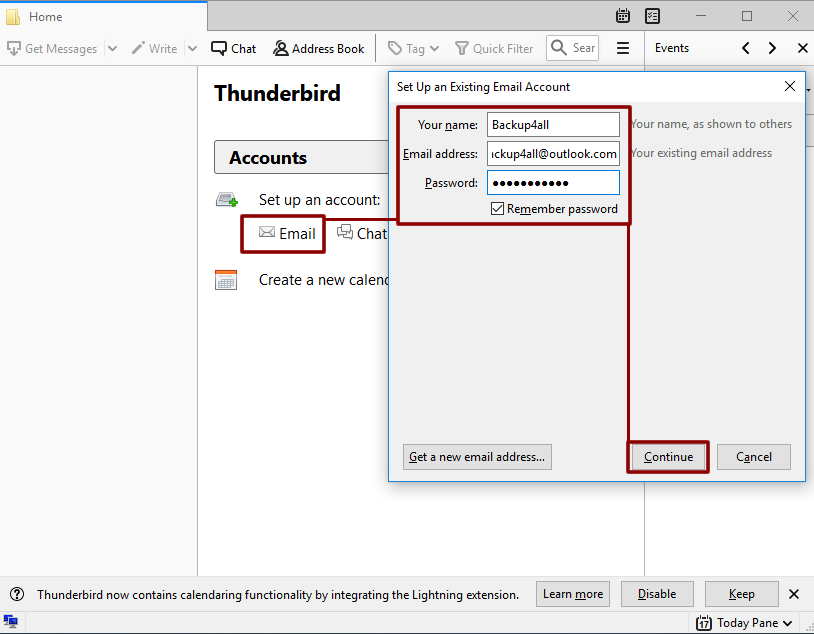
Here's how you can configure Outlook.com in Mozilla Thunderbird and then back-up your emails:
- Open Thunderbird and under Set up an account click on Email. You'll be asked to enter your credentials, click Continue to finalize adding the Outlook.com account.
- Access the newly created account in Thunderbird and wait for the application to download your emails.
- Open Backup4all and select File -> New Backup (Ctrl+N).
- In the Where do you want to save the backup? section, select a destination for the backup and click Next.
- On the What do you want to backup page, select Mozilla Thunderbird. This will automatically add all the necessary Mozilla Thunderbird files as a source for the backup.
- On the Filter the backup sources page, you can set include/exclude filters for backup sources. Then press Next.
- On the How do you want to backup page, you can choose the backup type and the encryption. It is recommended to leave Smart as the default backup type.
- On the When do you want to backup page, you can set the backup job to automatically run on the specified time and days. Press Next.
- On the Personalize your backup job page, enter a name for the backup in the Backup name field.
- Press Save and run.